
V380 Pro

v380 pro download

This page is a simple guide I put together after helping many people install and use the V380 Pro app. I wrote everything based on real problems users often face, like how to download the app, how to connect the camera for the first time, and what to do when the camera suddenly goes offline. I also added common search terms such as “V380 Pro download” and “V380 Pro for PC,” because these are the things people usually look for when they get stuck. My goal is to explain everything in clear, friendly language so even first-time users can follow each step without stress.

V380 Pro Download (Android & iOS)

If you are looking for a fast and safe way to get the V380 Pro app, this section gives you everything you need. Many users search for “V380 Pro download” because they want to connect a new camera or reinstall the app after a problem. Here you can learn where to download it safely, how to avoid fake APK files, and how to start the setup without mistakes. The steps are simple and work for both Android and iPhone, even if you have no tech experience.
V380 Pro Download (1)
V380 Pro Download (3)
V380 Pro Download (2)

V380 Pro Features

Before you do a V380 Pro Download, many people want to know what the app can actually do. This section explains the main features in simple words so you can see how it helps with home, shop, or office security. From night vision and two-way talk to cloud storage and mobile alerts, these tools make monitoring easier, safer, and more reliable.

Motion Detection Alerts

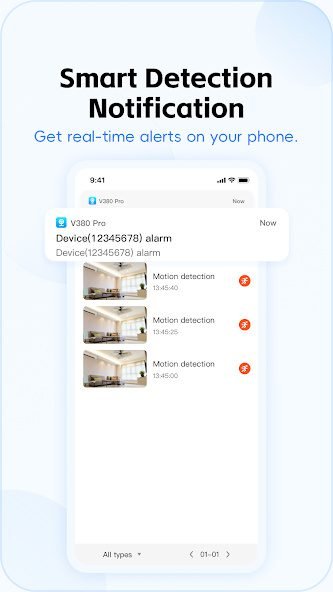
The V380 camera watches for movement and sends a quick notice to your phone through the V380 Pro app. You can change how sensitive it is, so small actions like pets or lights won’t bother you. It helps you notice important activity at home while you are away.

HD Live Video View

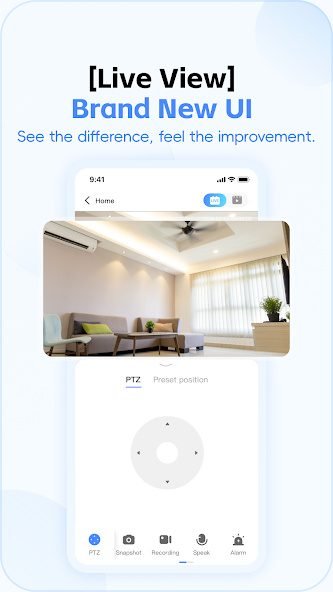
The V380 Pro app lets you check your home in clear HD quality. You can see doors, halls, and people without guessing what is happening. With steady Wi-Fi, the video loads smoothly and helps you feel more connected to your home, even when traveling or working.

Two-Way Audio Talk

You can speak through the camera using the V380 Pro app, which works like a simple voice button. It lets you talk to family, pets, or anyone at your door. The sound is clear enough for daily use and makes communication easier when you are not physically at home.

Night Vision Mode

The camera’s night vision turns on when the room becomes dark, giving you a clear view even without lights. The image switches to a clean black-and-white look. This helps you watch doors, hallways, and sleeping kids without needing extra settings or manual control.

Cloud Storage Recording

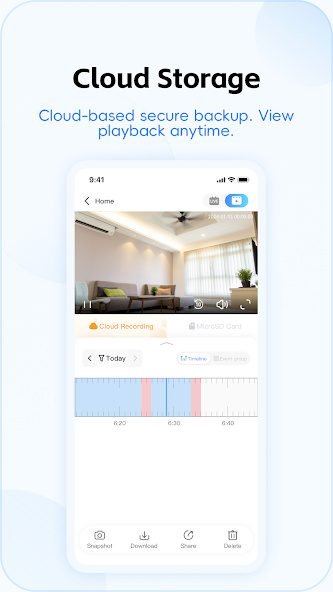
With cloud storage, your videos stay safe online even if the camera is unplugged or damaged. You can play back recordings anytime inside the V380 Pro app. Many people prefer this because it removes the risk of losing files and keeps important moments stored securely.

microSD Card Local Storage

If you prefer local storage, the camera supports a microSD card for saving daily videos. You can choose loop recording or motion-based clips in the app. A good memory card keeps the camera running smoothly and avoids monthly fees, making it a simple long-term option.

Multi-Device Sharing

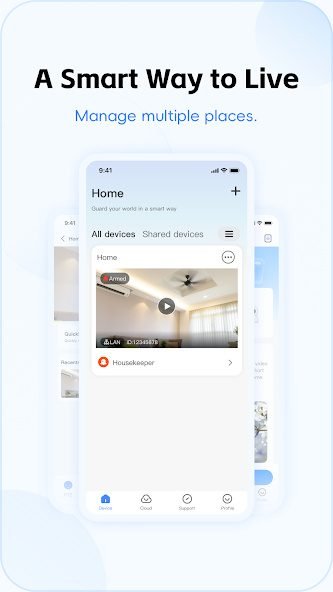
You can share your camera with family members through the V380 Pro app. They can watch live video or check past recordings using their own phones. You control what they can see, which keeps the device safe. This makes home monitoring easier for families working together.

Pan & Tilt Control

If your model supports pan and tilt, you can move the camera using simple swipes in the V380 Pro app. It helps you check different corners of a room without physically adjusting the device. This makes monitoring larger areas smoother and more flexible for daily use.

FAQ for V380 Pro Download

I wrote this FAQ based on the real problems people face after a V380 Pro Download and setup. Many users get confused when the camera goes offline, the QR code won’t scan, or the app says “device not connected.” I collected common questions from support messages, forums, and my own experience using V380 Pro at home. The answers below are simple and friendly, so even first-time users can solve issues without stress. If you just completed a V380 Pro Download, this FAQ will save you a lot of time.

When your V380 Pro camera shows “Device Offline,” the problem is usually related to Wi-Fi or distance. First, check if your router is working normally and make sure your phone is connected to the same 2.4G Wi-Fi network. The camera cannot use 5G Wi-Fi, so this is important. Move the camera closer to your router and restart it. You can also reset the camera for eight seconds and add it again in the app. Most of the time, these steps fix the issue quickly. If the problem continues, update the app firmware.

If your V380 Pro camera cannot connect, there are a few simple things to check. Make sure you are entering the correct Wi-Fi password and that your router is broadcasting a 2.4G signal, not 5G. Reset the camera by holding the reset button until it says “Waiting for connection.” Open the app, choose “Add Device,” and follow the instructions again. Keep your phone close to the camera during setup. Avoid using VPN or mobile data. With these steps, most users can connect successfully. If it still fails, restart your router and try again.

To download V380 Pro on Android, open the Google Play Store and search for “V380 Pro.” Choose the app with the official icon and developer name to avoid fake versions. Tap Install and wait for the download to finish. Once installed, open the app and allow all required permissions, such as camera, microphone, and storage, so the app can function correctly. If Google Play is not available in your region, you can download the APK from the official V380 website, but avoid unknown sites. After installation, follow the setup steps to add your camera.

To get V380 Pro on your iPhone, open the App Store and search for “V380 Pro.” Choose the official version and tap Download. After the installation finishes, open the app and accept the required permissions. This allows features like two-way audio, notifications, and video recording to work properly. The setup process on iPhone is similar to Android: add a device, reset the camera, connect to your Wi-Fi, and scan the QR code. If you see any pop-ups about network access, make sure to allow them. This ensures the camera stays online and stable.

Resetting the V380 Pro camera is simple. Look for the reset button on the camera body, usually near the microSD slot. Hold the button for about eight seconds until you hear “Reset success” or “Waiting for connection.” This resets all previous settings, including old Wi-Fi information. After the reset, open the V380 Pro app and add the device again by scanning the QR code. Make sure your phone is connected to 2.4G Wi-Fi during setup. Resetting is useful when the camera is offline, cannot connect, or you changed your Wi-Fi password.

To use V380 Pro on Windows, you can download the official V380 PC client. After downloading, install the software and log in with the same account you use on your phone. Your cameras will appear automatically if they are linked to your account. If you prefer, you can also use an Android emulator like BlueStacks or LDPlayer. Install the emulator, search for “V380 Pro,” and log in normally. This method is useful when the official client does not support some features. Both options allow live viewing, playback, and basic camera control.

To use V380 Pro on a Mac, the most common method is installing an Android emulator because the official V380 PC client does not support macOS. Download an emulator like BlueStacks or LDPlayer for Mac, install it, and open the built-in app store. Search for “V380 Pro,” install it, and log in with your regular account. Your cameras will show up the same way they do on your phone. Make sure your Mac has enough storage and RAM to run the emulator smoothly. This method gives you live view, playback, and most basic camera functions.

If your camera cannot scan the QR code on your phone, start by checking the distance between the phone and the camera lens. Hold the QR code about 10–15 cm away for the clearest result. Make sure your phone screen brightness is set to maximum because low brightness makes the code hard to read. Clean the camera lens if it looks dusty. Also avoid holding the phone at an angle; keep it straight. If the problem continues, restart the app, reset the camera, and try again. Most users find that adjusting distance and brightness fixes the issue.

When night vision does not activate, first check if the room is dark enough. The infrared lights turn on only in low-light environments. Bring your hand close to the camera lens to quickly test it. If night vision still does not switch on, open the app and go to the camera’s settings to make sure the night mode is set to Auto. Clean the infrared bulbs around the lens because dust can block the light. Restarting the camera can also help. If nothing works, update the firmware and try testing in a fully dark place.

Blurry video is usually caused by poor Wi-Fi or a dirty lens. First, gently wipe the camera lens using a soft cloth to remove fingerprints or dust. Then open the V380 Pro app and check if your video quality is set to “HD.” Low-quality mode loads faster but looks blurry. If the camera still looks unclear, move it closer to your Wi-Fi router or improve your signal with a Wi-Fi extender. Large walls or metal objects can also weaken the signal. Restarting your router and camera often helps improve video clarity too.

Motion detection may fail if the sensitivity is too low or if the feature is turned off. Open the camera settings in the V380 Pro app and make sure motion alerts are enabled. Then increase the sensitivity so the camera can detect smaller movements. If you are using cloud storage or a microSD card, check that they are installed correctly because motion recordings cannot save without storage. Make sure the camera faces an open area, not a wall. Restart the camera to refresh the settings. Updating the firmware can also improve motion detection performance.

To set up cloud storage, open the V380 Pro app and select your camera. Tap “Cloud Storage” and choose a plan based on your needs. You can pick continuous recording or motion-based recording. After selecting a plan, follow the on-screen steps to activate it. Make sure your camera is online because cloud storage will not work if the device is offline. Cloud recordings can be viewed from any phone after logging in with the same account. If the cloud option does not appear, update your app or restart the camera to refresh the menu.

To use a microSD card, insert a Class 10 or higher card into the slot on your camera. Restart the device and open the V380 Pro app. Go to storage settings and format the card so the camera can record properly. Choose between loop recording, which overwrites old videos, or event recording, which saves motion clips. Make sure the card is not larger than the maximum size supported by your camera model. If the card is not detected, try reinserting it or using a different card. Formatting inside the app usually fixes most detection issues.

If you cannot hear audio, check whether the speaker or microphone icon is muted inside the V380 Pro app. Tap the icon to enable sound. If you still hear nothing, make sure your phone has granted microphone permission to the app. Weak Wi-Fi can also cause audio delays or drops, so try moving the camera closer to your router. Clean the microphone hole on the camera gently to remove any dust. Restart both the app and the camera. If two-way audio does not work, switch to a different network or update the firmware.

Two-way talk lets you speak through your camera. To use it, open the live view screen inside the V380 Pro app and tap the microphone button. Hold it while talking if your version uses push-to-talk mode. Make sure the app has microphone permission, or your voice will not transmit. Your Wi-Fi must also be stable for clear audio. If the other side cannot hear you, check the camera speaker by playing a test message. Restart the device and update the firmware if needed. These steps usually make two-way talk work smoothly.

If your camera is not recording, the storage setting is usually the issue. Check if the microSD card is installed and recognized by the app. If not, try formatting the card inside the V380 Pro settings. Make sure the card is not full; loop recording helps avoid storage problems. If you use cloud storage, confirm that your subscription is active and the camera is online. Motion recording also requires motion detection to be turned on. Restart the camera after changing any settings. Most users find that storage formatting solves recording issues quickly.

To share your camera, open the V380 Pro app, select the device, and tap “Share Device.” Enter the other person’s account or scan their share code. They must have their own V380 Pro account before you can share the device. Choose the permissions you want them to have, such as live view or playback. Shared users cannot change your main settings, which keeps your device safe. Sharing works through cloud servers, so both phones must have internet. If sharing fails, restart the app, check your connection, and try sending the share code again.

If you changed your home Wi-Fi or router, the camera will not reconnect automatically. To set the new Wi-Fi, reset the camera by holding the reset button for about eight seconds until it says “Waiting for connection.” Open the V380 Pro app, tap “Add Device,” and follow the setup steps again. Make sure to connect to a 2.4G Wi-Fi network because the camera does not support 5G. Enter the correct password and scan the QR code. This simple reset-and-add process is the only way to change the Wi-Fi on your device.

You can use V380 Pro without internet only in limited ways. If your camera and phone are connected to the same local Wi-Fi network, you may still view the live feed. However, remote access will not work without internet. Features like cloud storage, push notifications, and remote playback also require an internet connection. A microSD card can still record videos locally, but you will need to connect to the same network to view them. For full features and stable performance, internet access is strongly recommended. Many users choose a backup hotspot for emergencies.