


You open your security camera app and see a new update notification. Should you install it immediately, or wait? Many iCSee users have the same question. A camera app update may look simple, but users often worry about losing camera settings, connection problems, or unexpected recording issues after updating. The problem is that official update notes are usually short and do not explain how changes affect daily camera use. The latest iCSee App update released in July 2026 brings several important improvements, including SD card error detection, AI bird recognition language support, faster preview loading for low-power cameras, and a redesigned feedback interface. In this guide, we will explain what changed, why these improvements matter, and whether you should update your app.
What’s New in the Latest iCSee App Update July 2026?
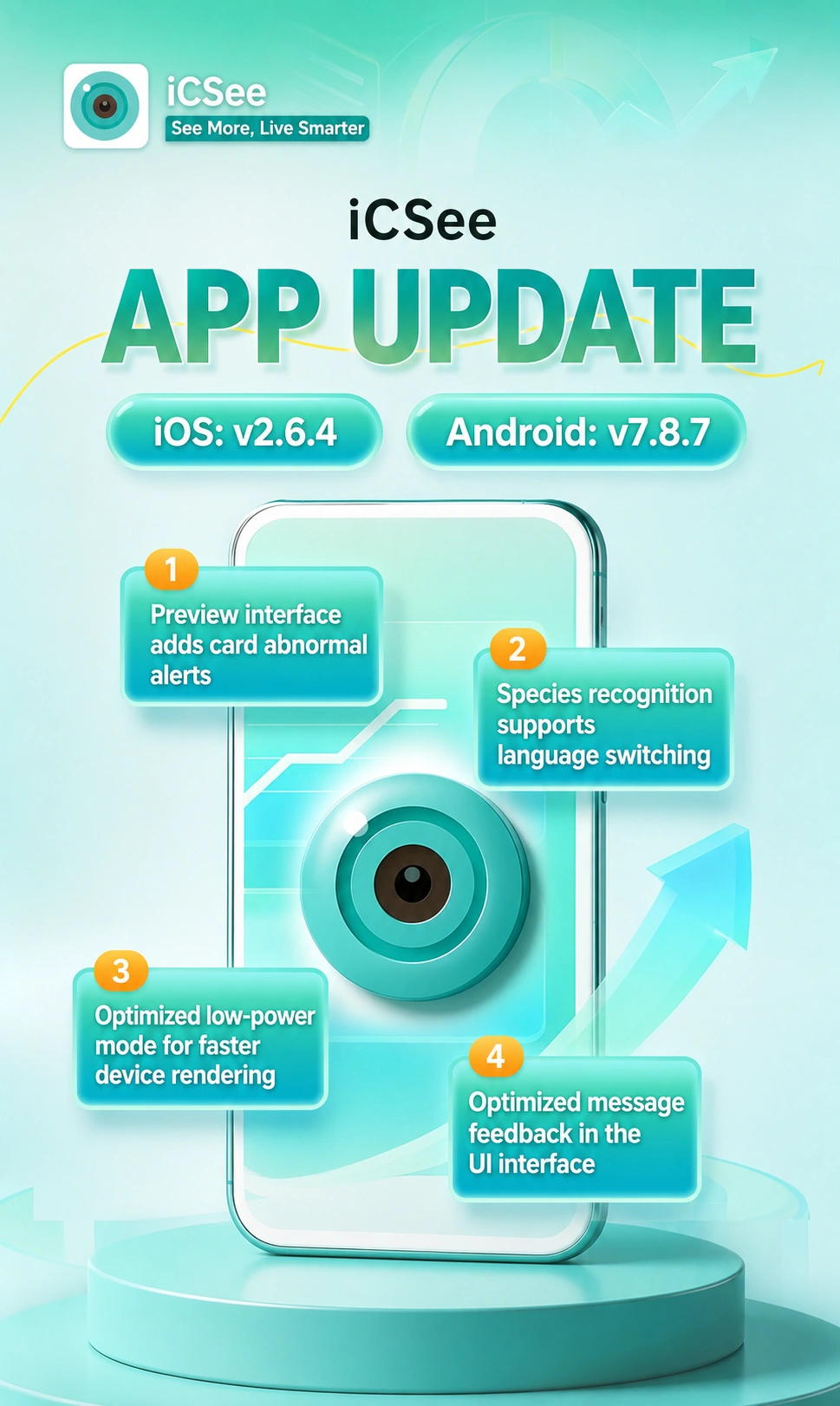
The July 2026 update focuses on improving reliability and user experience rather than completely changing the app design. The latest versions include:
- iOS version: v2.6.4
- Android version: v7.8.7
This update solves several common problems that security camera users may experience, especially issues related to storage errors, slow preview loading, and communication between users and the app team. For many users, the value of an update is not about adding a new button or changing the appearance of the app. It is about making everyday tasks easier. When checking a camera at home or managing multiple devices, small improvements can make a big difference. A faster preview, clearer warning message, or easier feedback process can save time when something goes wrong. The July 2026 iCSee App update includes four main improvements:
- SD card abnormal status detection
- Bird recognition language synchronization
- Faster video loading for low-power cameras
- Improved feedback interface design
Let’s look at each improvement and how it affects real users.
iCSee App Adds SD Card Error Detection for Better Recording Reliability
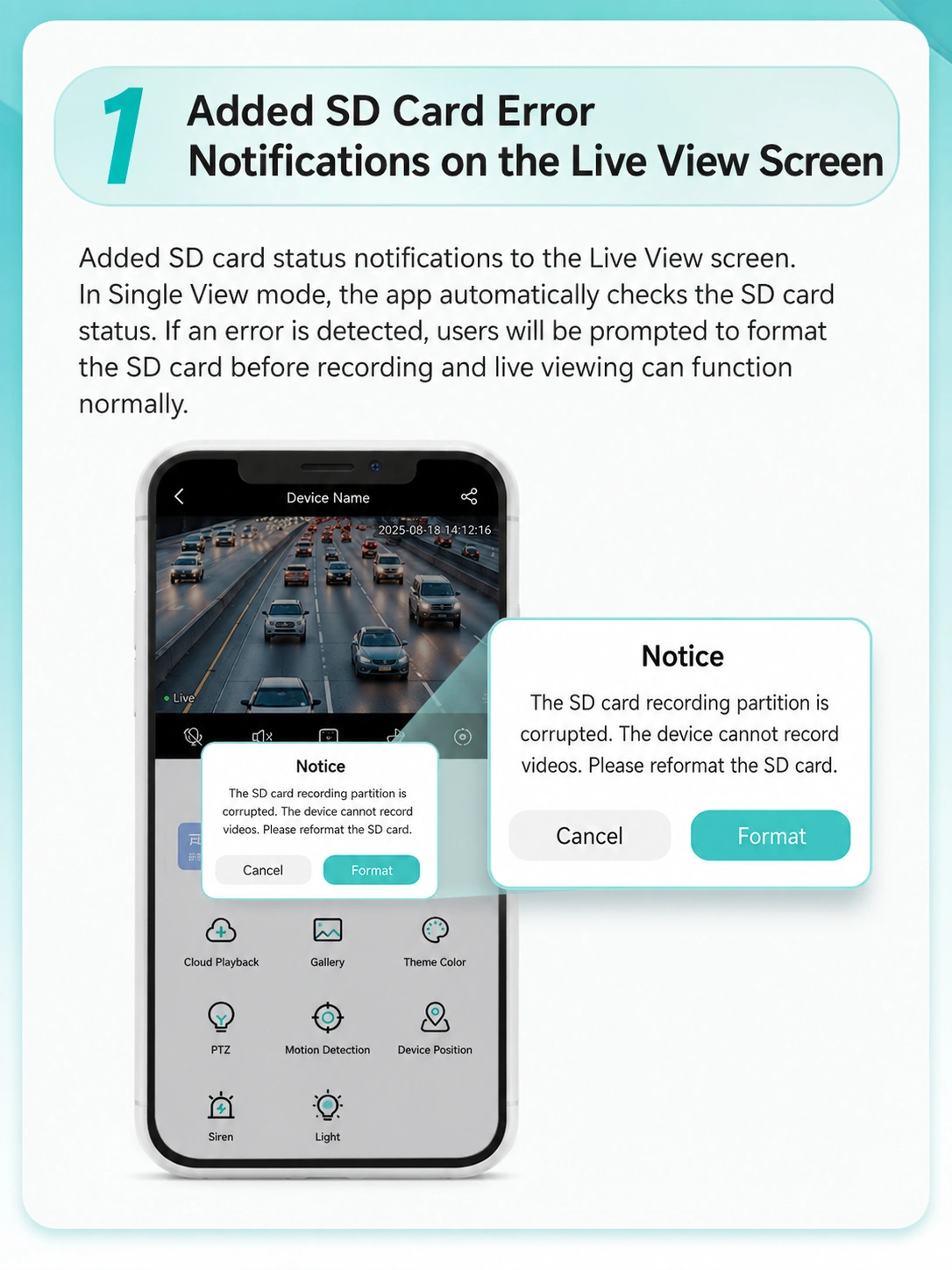
One of the most useful improvements in this update is the new SD card abnormal status reminder. Many security camera users have experienced this situation: The camera connects normally. Live viewing works. The app opens without problems. However, when checking recorded videos, there is nothing available. At first, many people think the camera itself is broken. In reality, the problem is often related to the SD card. An SD card can have problems such as:
- Incorrect storage format
- Damaged recording partition
- Memory card errors
- Recording space problems
Before this update, users often needed to discover these problems manually. They might only notice something was wrong when the camera stopped saving videos. The latest iCSee App update improves this process by checking SD card status during preview. When the app detects a recording storage problem, it can show a reminder and guide users to format the SD card. This helps users solve recording problems faster without unnecessary troubleshooting.
How the New iCSee SD Card Alert Helps Users?
The biggest improvement is not only detecting the problem, but also explaining what users should do next. A good security camera system should not only tell users that something failed. It should help them understand how to fix it. With the updated SD card detection:
- Users receive a clearer warning
- The app identifies possible storage problems
- The solution process becomes easier
- Recording issues can be solved earlier
This is especially useful for beginners who are not familiar with camera storage settings. Instead of searching online for “why is my camera not recording,” users can receive guidance directly inside the app.
iCSee Bird Recognition Supports System Language Switching
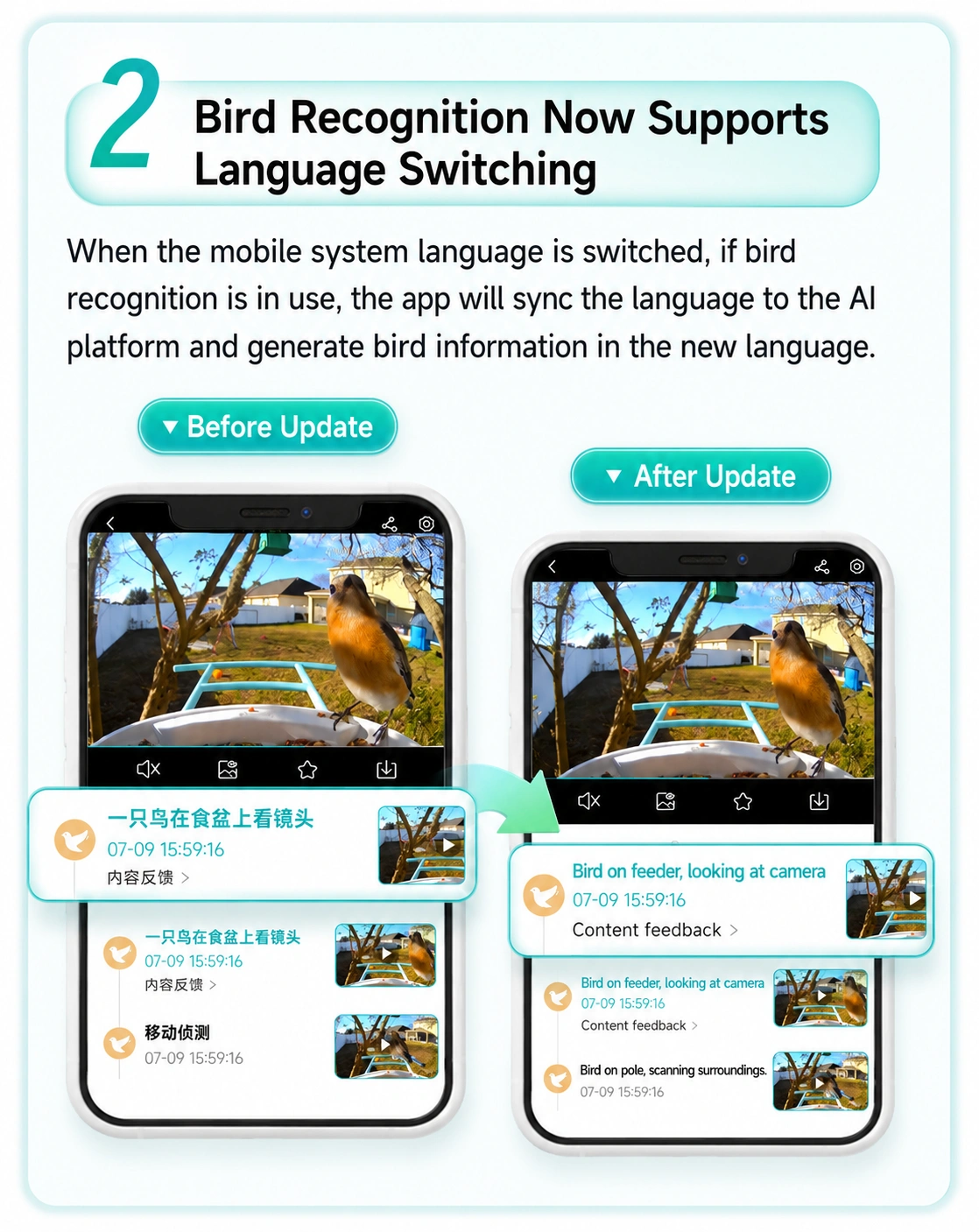
Another improvement in the July 2026 update focuses on AI bird recognition. AI features are becoming more common in smart cameras. However, recognition results are only useful when users can understand the information clearly. Previously, some users might see AI recognition messages displayed in a language different from their phone settings. The new update improves this experience. When the phone system language changes, the iCSee App can synchronize the language setting with the AI recognition platform. Bird recognition notifications will automatically adapt to the user’s preferred language.
How iCSee AI Bird Recognition Improves User Experience?
AI recognition features are designed to help users understand what the camera detects without manually checking every recorded event. For example, when a supported camera identifies a bird, the recognition result can provide additional information through the app. This is especially useful for outdoor cameras installed in gardens, yards, farms, or other open areas. However, language support is an important part of any AI feature. A recognition system may work correctly, but if notifications are displayed in a language users do not understand, the feature becomes less practical. The latest iCSee App update improves this experience by allowing bird recognition notifications to follow the phone system language. This means users who change their smartphone language settings can receive AI recognition messages in a more familiar language.
Why Is Language Support Important for iCSee AI Features?
Smart camera users come from different countries and regions. A camera installed in one country may be managed by family members living somewhere else. Without proper language support, AI notifications can become confusing. The language synchronization improvement helps make AI features easier to use for international users. It provides several benefits:
- Easier understanding of AI recognition messages
- Better experience for users who use multiple languages
- More consistent app experience across devices
This improvement may seem small compared with a completely new feature, but usability improvements like this often have a bigger impact on daily use.
Faster Preview Loading for Low-Power iCSee Cameras
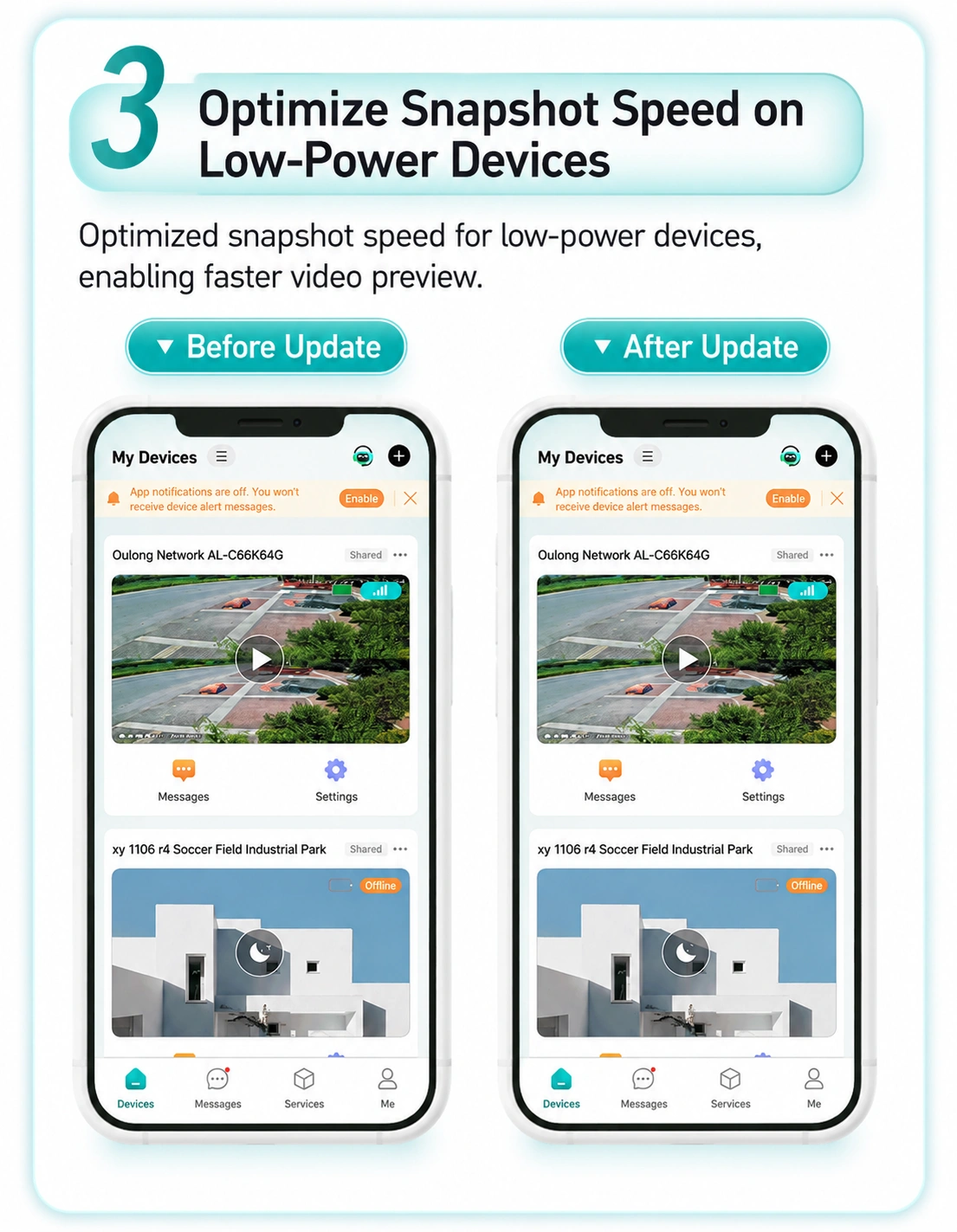
Another important improvement in the July 2026 update is faster preview loading for low-power cameras. Many users expect their camera image to appear immediately after opening the app. However, low-power cameras often have a different working process compared with traditional wired cameras. They are designed to save energy, especially battery-powered models. Because of this, starting the video stream may take longer. The latest iCSee App update includes optimization specifically for these devices, helping the preview image load faster and making remote viewing smoother.
Why Does My iCSee Camera Take Long to Load?
Slow camera loading is a common issue searched by many users. When opening a camera preview, several factors affect loading speed:
Camera Hardware
Low-power cameras usually need more time to wake up and prepare the video stream.
Network Connection
A weak Wi-Fi signal or unstable internet connection can increase loading time.
App Communication
The app needs to communicate with both the camera and related services before displaying the live view. The update improves the software side of this process, helping supported low-power cameras respond faster. However, it is important to understand that an app update cannot solve every loading problem. If your camera is far away from the router or your network speed is unstable, improving the Wi-Fi environment may still be necessary.
How the Faster Preview Improvement Helps Daily Camera Use
A faster preview experience is valuable because most users open their cameras for quick checks. For example:
- Checking whether a package has arrived
- Looking at a backyard area
- Confirming that children or pets are safe
- Monitoring a shop during business hours
In these situations, waiting less time improves the overall experience. From my experience with smart camera users, people usually do not complain about missing advanced features. They complain when basic actions take too long. A camera that opens quickly feels more reliable, even if the hardware itself has not changed.
iCSee Improves Feedback Interface Design
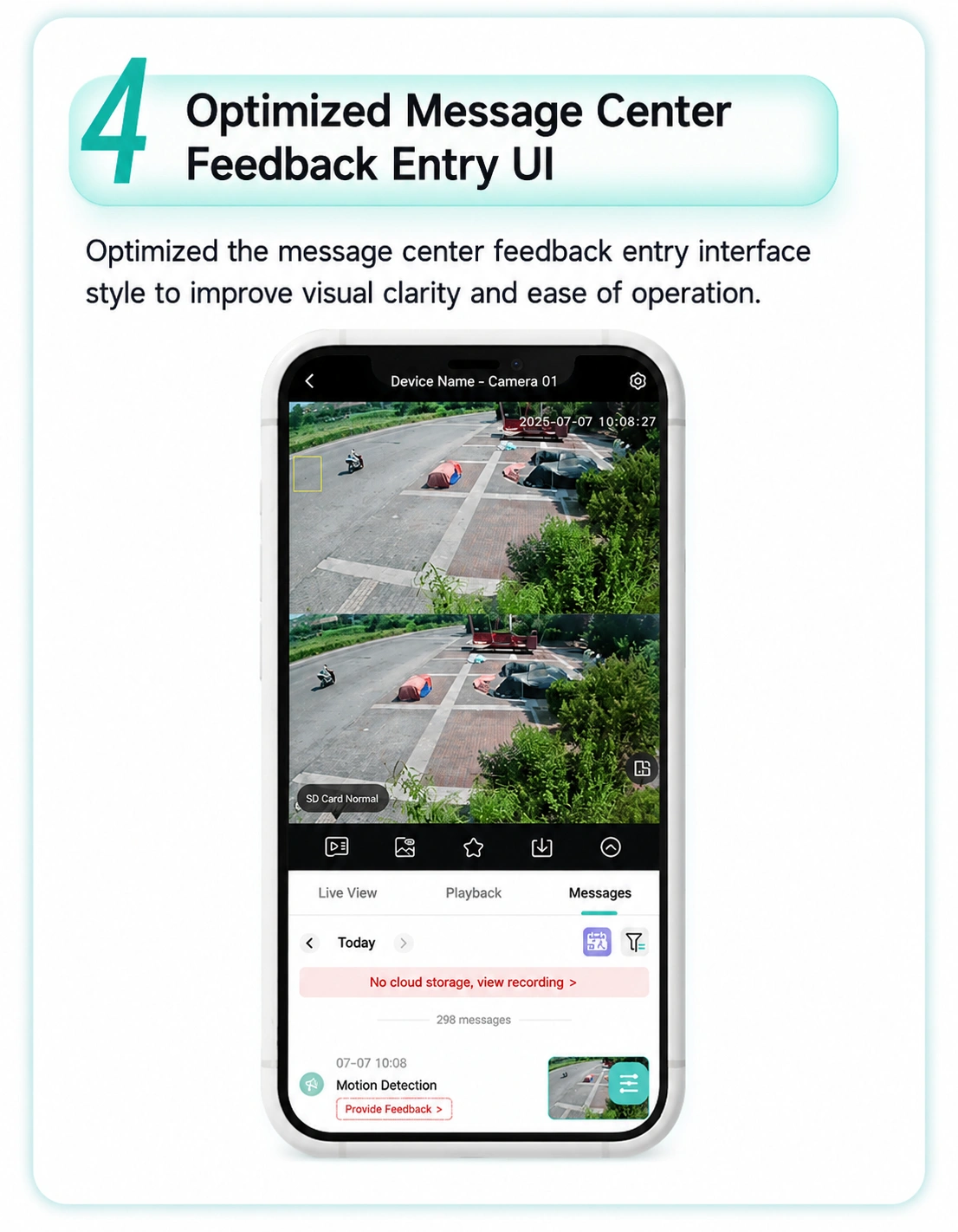
The fourth improvement in the July 2026 update is the redesigned message feedback interface. Feedback tools are often overlooked, but they play an important role in improving software. When users experience problems, they need an easy way to report them. A complicated feedback process can discourage users from sending useful information. The new design improves the feedback center by making the interface clearer and reducing unnecessary steps.
Why Does the iCSee Feedback Feature Matter?
A good feedback system benefits both users and developers. For users:
- Problems can be reported more easily
- Information can be submitted faster
- Communication becomes clearer
For developers:
- User problems can be collected more efficiently
- Common issues can be identified earlier
- Future updates can focus on real user needs
Many app improvements come from real-world feedback. A simple reporting process helps create better future versions.
Should You Update the iCSee App to the Latest Version?
After reading about the new features, many users may still ask: “Should I update my iCSee App now?” For most users, updating is recommended. The July 2026 version does not focus on changing your existing camera setup. Instead, it improves important areas that affect daily use. Updating is especially useful if you experience:
- SD card recording problems
- Slow camera preview loading
- AI recognition language issues
- App usability problems
Who Should Update the iCSee App Immediately?
Some users can benefit more from updating quickly. You should consider updating if:
- Your camera frequently fails to record videos
- Your preview takes a long time to load
- You use AI recognition features
- You manage cameras in different languages
These users are more likely to notice the improvements from this update.
Will Updating iCSee Delete My Camera Settings?
A common concern is losing camera settings after an update. Normally, updating the iCSee App does not remove:
- Your account information
- Connected camera list
- Existing device settings
The app update and camera reset are two different actions. You usually do not need to remove or reconnect your camera after installing the new version. However, it is always a good habit to remember your account information before making major changes.
How to Update the iCSee App Safely?
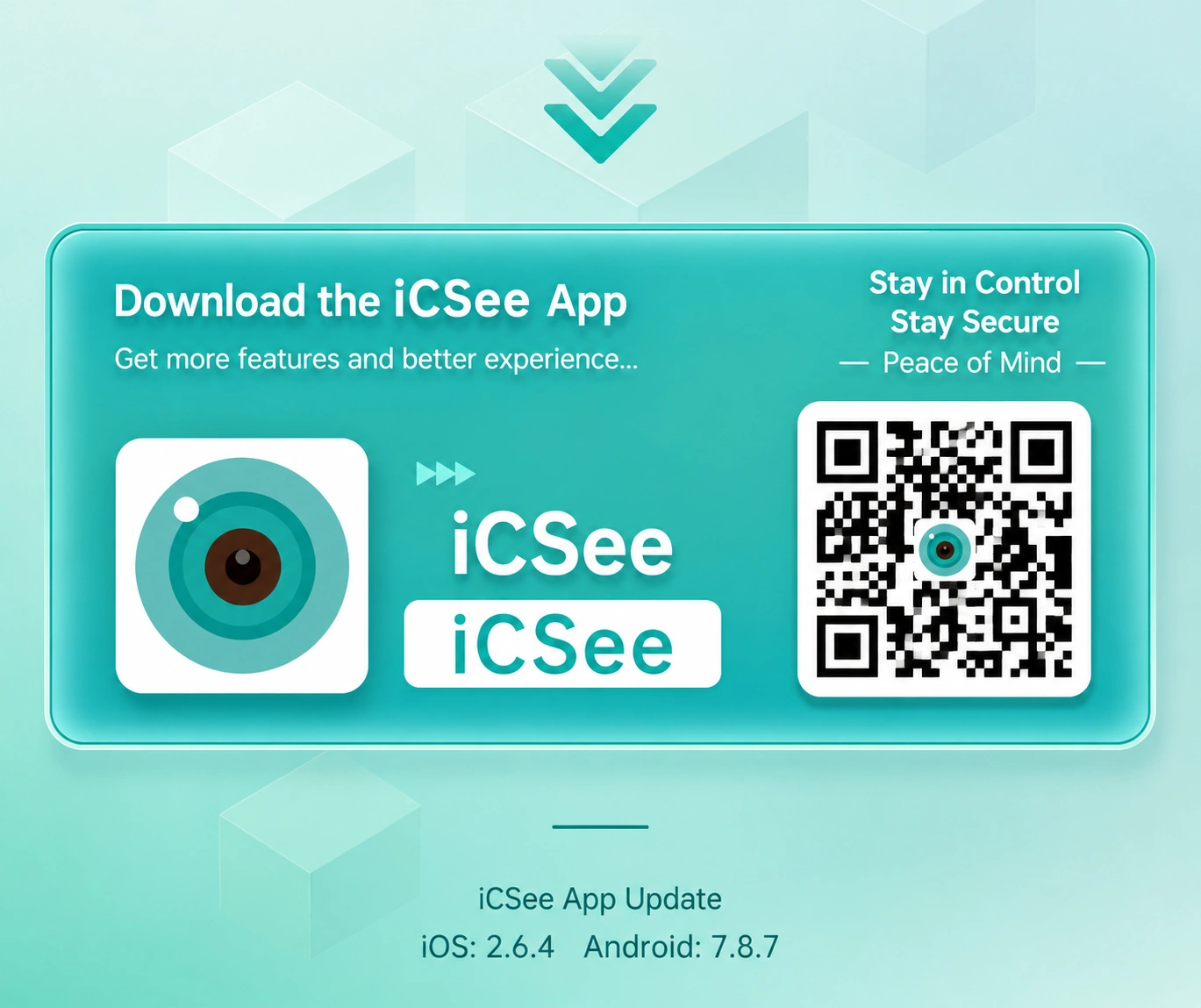
Updating the app is simple, but following the correct process can prevent unnecessary problems.
Check Your Current iCSee Version
Before updating, check your current version. The July 2026 versions are:
- iOS: v2.6.4
- Android: v7.8.7
Knowing your current version helps you confirm whether the update has been installed successfully.
Update Through Official App Stores
The safest way to get the latest iCSee App update is through official stores. For Android:
- Open Google Play Store.
- Search for iCSee.
- Select Update if available.
For iPhone:
- Open App Store.
- Go to available updates.
- Install the newest version.
Avoid downloading unknown app files from unofficial websites because they may create security risks.
What Should You Check After Updating?
After installation, open the app and check basic functions. You can confirm:
- Camera connection status
- Live preview
- Recorded videos
- Motion notifications
If everything works normally, no additional action is needed. Do not reset your camera simply because you installed a new app version.
Does the Latest iCSee App Update Affect Existing Cameras?
One common concern before installing a new version is: “Will my camera still work after updating the iCSee App?” For most users, the answer is yes. The July 2026 update is designed to improve the application experience. It does not replace your camera hardware or remove your existing device connection. Your camera should continue working normally after updating, but the final experience depends on several factors, including camera model, firmware version, and network quality.
Do I Need to Reconnect My Camera After Updating iCSee?
Usually, no. An app update is different from resetting your camera. Updating the application normally keeps:
- Your account information
- Added camera devices
- Basic camera settings
Many beginners make the mistake of resetting the camera immediately when something looks different after an update. This can create more work because resetting means you may need to:
- Connect the camera to Wi-Fi again
- Add the device again
- Configure settings again
Before resetting anything, try simple checks first.
Is iCSee App Update the Same as Camera Firmware Update?
No. This is an important difference that many new users do not understand. The iCSee App runs on your smartphone, while camera firmware runs inside the camera. They work together, but they are not the same thing. An app update can improve:
- User interface
- Communication with devices
- App performance
- Feature support
A firmware update can improve:
- Camera operation
- Hardware compatibility
- Internal device functions
If your camera manufacturer provides firmware updates, checking them separately can help maintain the best performance.
Common Problems After iCSee App Update and How to Fix Them
Although most users can update without problems, some people may experience temporary issues afterward. Usually, these problems are not caused by the update itself. They are often related to network conditions, camera settings, or storage problems. Below are some common situations and solutions.
iCSee Camera Goes Offline After Update
A common search question is: “Why is my iCSee camera offline after updating?” If your camera appears offline, do not immediately remove the device. Try these steps first:
- Check whether your phone internet connection works.
- Restart the camera and router.
- Open the app again and refresh the device list.
If the problem continues, check:
- Wi-Fi signal strength
- Router status
- Camera power supply
In many cases, the camera is not damaged. It simply cannot communicate properly with the network.
iCSee Camera Cannot Record After Update
If live viewing works but recordings are missing, check the SD card first. The July 2026 update specifically improves SD card problem detection, but users should still understand basic storage checks. Possible causes include:
- SD card errors
- Incorrect formatting
- Damaged memory card
- Full storage space
Try checking the storage status inside the app. If the app recommends formatting the SD card, make sure important videos are saved before formatting because formatting removes stored data.
iCSee Preview Is Still Loading Slowly
The latest update improves preview speed, especially for low-power cameras. However, slow loading may still happen because of:
- Weak Wi-Fi signal
- Long distance from router
- Slow internet connection
- Camera hardware limitations
A useful test is moving your phone closer to the router and checking whether the loading speed improves. If the problem only happens in one location, the network environment may be the reason.
iCSee Notifications Are Delayed
If motion notifications arrive late after updating, check your phone settings. Some smartphones limit background activity to save battery. Check:
- App notification permission
- Battery optimization settings
- Motion detection settings inside the app
The camera must also stay online for notifications to work correctly.