

If your iCSee camera light is not working, the problem may not be the light itself. You may see a red LED that keeps blinking, no night vision light after dark, or a spotlight that no longer turns on when motion is detected.
The key is to identify which light is having the problem. iCSee cameras can have a status LED, infrared night vision lights, or a white spotlight, and each one can fail for different reasons.
This guide explains what each light means, why it may stop working, and what to check before resetting your camera.
What Does “Light” Mean on an iCSee Camera?
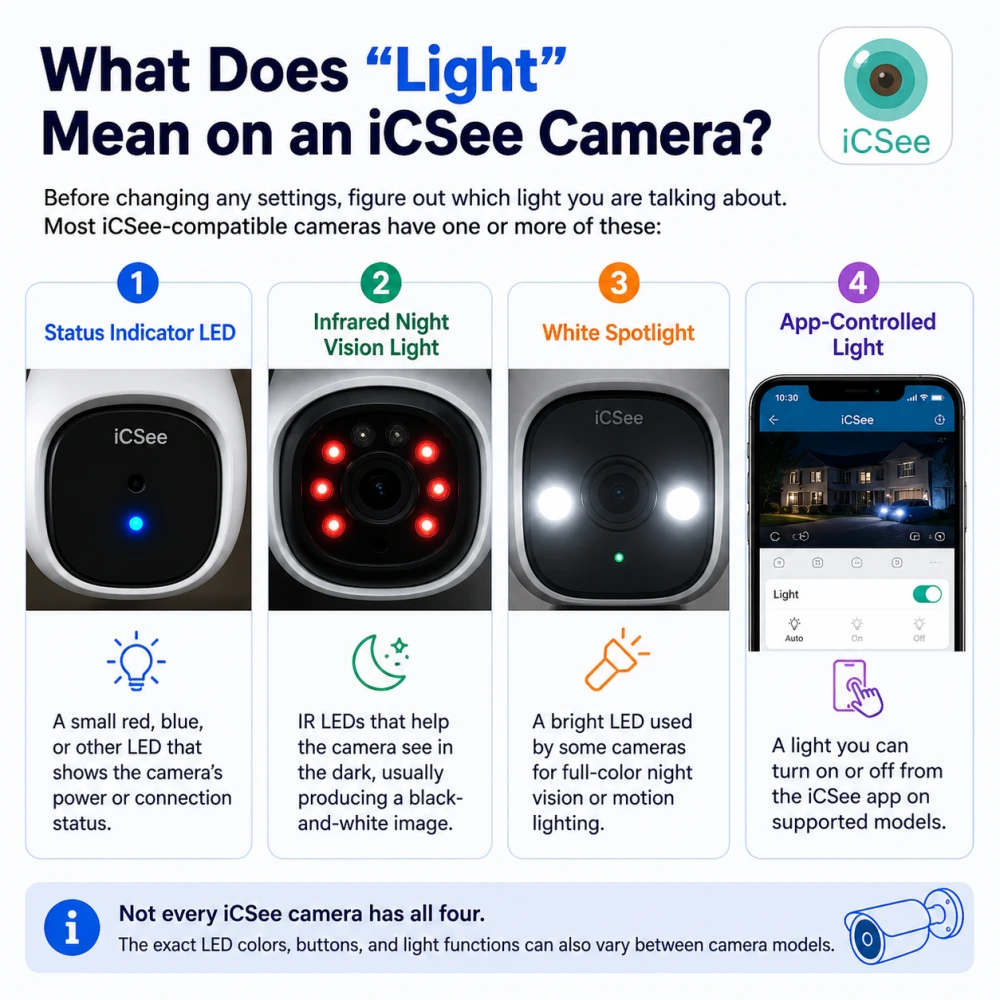
Before changing any settings, figure out which light you are talking about. Most iCSee-compatible cameras have one or more of these:
- Status indicator LED: A small red, blue, or other LED that shows the camera’s power or connection status.
- Infrared night vision light: IR LEDs that help the camera see in the dark, usually producing a black-and-white image.
- White spotlight: A bright LED used by some cameras for full-color night vision or motion lighting.
- App-controlled light: A light you can turn on or off from the iCSee app on supported models.
Not every iCSee camera has all four. The exact LED colors, buttons, and light functions can also vary between camera models.
So if your iCSee camera light is not working, start by identifying which light has stopped working.
Why Is My iCSee Camera LED Red, Blinking, or Not Turning On?
The small status LED is different from the night vision or spotlight. It mainly tells you about the camera’s power or connection state.
If the status LED is completely dark, check the power supply first.
Make sure the power adapter is firmly connected to both the wall outlet and the camera. If your camera uses a USB cable, check both ends of the cable. For outdoor cameras, also look for loose connectors, damaged cables, or moisture around the power connection.
If the camera uses a battery, charge it before doing anything else.
For a PoE camera, check the PoE injector or network switch. A faulty port can make the camera appear completely dead.
What Does a Red Light Mean?
On many iCSee-compatible cameras, a red or blinking red LED is related to the camera’s setup or network connection. However, the exact meaning depends on the camera model.
You may see patterns such as:
| Light pattern | Possible meaning | What to try |
|---|---|---|
| No light | Power problem or disabled indicator | Check the power adapter, cable, and outlet |
| Solid red | Camera may not be connected | Check Wi-Fi and add the camera again if needed |
| Blinking red | Setup or connection problem | Check the setup process and Wi-Fi settings |
| Blue light | Often indicates a connected or working state | Usually no action is needed |
These patterns are not universal across every iCSee camera. If your camera came with a manual, use its LED guide as the final reference.
What If the Red Light Keeps Blinking?
If the red LED keeps blinking and the camera does not connect, check your Wi-Fi first.
Many iCSee-compatible cameras support 2.4GHz Wi-Fi only, although the exact wireless specifications depend on the model. If your camera does not support 5GHz, connecting it to a 5GHz network will prevent the setup from completing.
Also check:
- Your Wi-Fi password
- Whether the router is working normally
- Whether the camera is too far from the router
- Whether your phone is connected to the correct Wi-Fi network
- Whether the camera has been reset before starting setup
If the camera connects and then keeps going offline, the problem may be a network connection issue rather than the LED itself.
Why Won’t the iCSee Night Vision Light Turn On at Night?
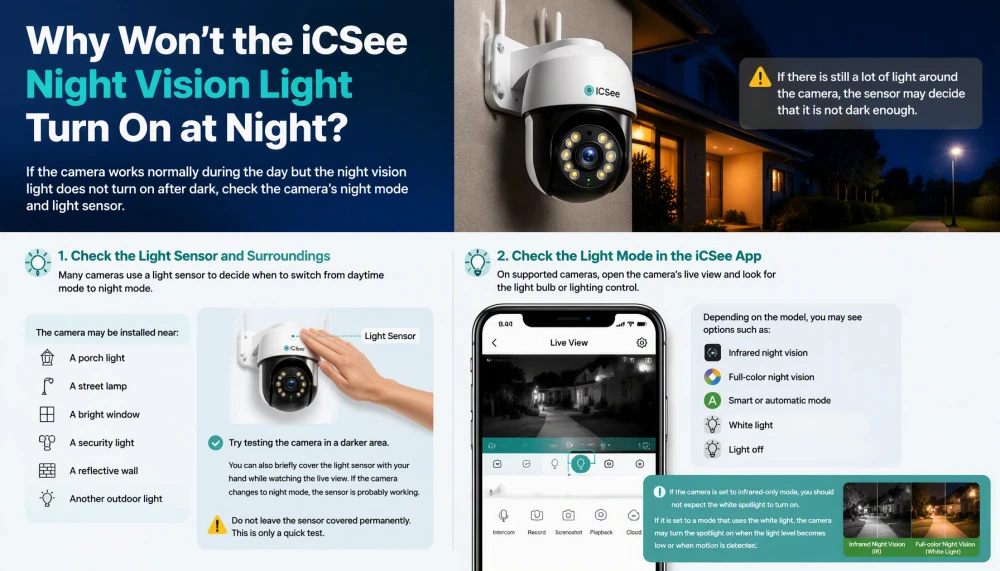
If the camera works normally during the day but the night vision light does not turn on after dark, check the camera’s night mode and light sensor.
Many cameras use a light sensor to decide when to switch from daytime mode to night mode. If there is still a lot of light around the camera, the sensor may decide that it is not dark enough.
For example, the camera may be installed near:
- A porch light
- A street lamp
- A bright window
- A security light
- A reflective wall
- Another outdoor light
Try testing the camera in a darker area.
You can also briefly cover the light sensor with your hand while watching the live view. If the camera changes to night mode, the sensor is probably working.
Do not leave the sensor covered permanently. This is only a quick test.
Check the Light Mode in the iCSee App
On supported cameras, open the camera’s live view and look for the light bulb or lighting control.
Depending on the model, you may see options such as:
- Infrared night vision
- Full-color night vision
- Smart or automatic mode
- White light
- Light off
If the camera is set to infrared-only mode, you should not expect the white spotlight to turn on.
If it is set to a mode that uses the white light, the camera may turn the spotlight on when the light level becomes low or when motion is detected.
The exact menu names can be different between iCSee camera models.
Why Won’t the Spotlight Turn On When Motion Is Detected?
Some iCSee cameras have a white spotlight that can turn on when motion is detected.
If the spotlight works manually but does not turn on when someone walks past the camera, check the motion settings first.
There are usually three things to check:
Check Motion Detection
Open the camera settings and find the motion or detection settings.
Make sure motion detection is enabled.
If the sensitivity is set too low, the camera may not detect a person walking through the area. If the camera does not detect motion, it has no reason to turn on the spotlight.
You can temporarily increase the motion sensitivity and test the camera again.
Check the Light Trigger
Some camera models have separate settings for motion recording, alerts, and lighting.
For example, motion detection may be enabled for recording while the light trigger is disabled.
Look for settings related to:
- Motion detection
- Alarm action
- White light
- Spotlight
- Light linkage
- Human detection
The exact names depend on the camera model.
Check the Schedule
A schedule can also stop the spotlight from working when you expect it to.
If your camera has a lighting or smart alarm schedule, make sure the current time falls inside the active period.
For example, a spotlight may be configured to work only between 7 PM and 6 AM. During the daytime, it may stay off even when motion is detected.
Can I Turn the iCSee Camera Light On or Off Manually?
On supported iCSee cameras, yes.
Open the camera’s live view and look for a light bulb icon or lighting control.
Tap it to turn the white spotlight on or off.
This is a useful test because manual control is different from automatic motion lighting.
If the light turns on manually but does not turn on during motion, the LED itself is probably working. You should then focus on:
- Motion detection
- Detection sensitivity
- Human detection
- Light trigger settings
- Schedules
If the light does not respond to manual control either, check the camera firmware, power supply, and app first.
Also remember that not every iCSee camera supports manual spotlight control. Some models only use the light automatically.
How to Fix an iCSee Camera Light That Isn’t Working
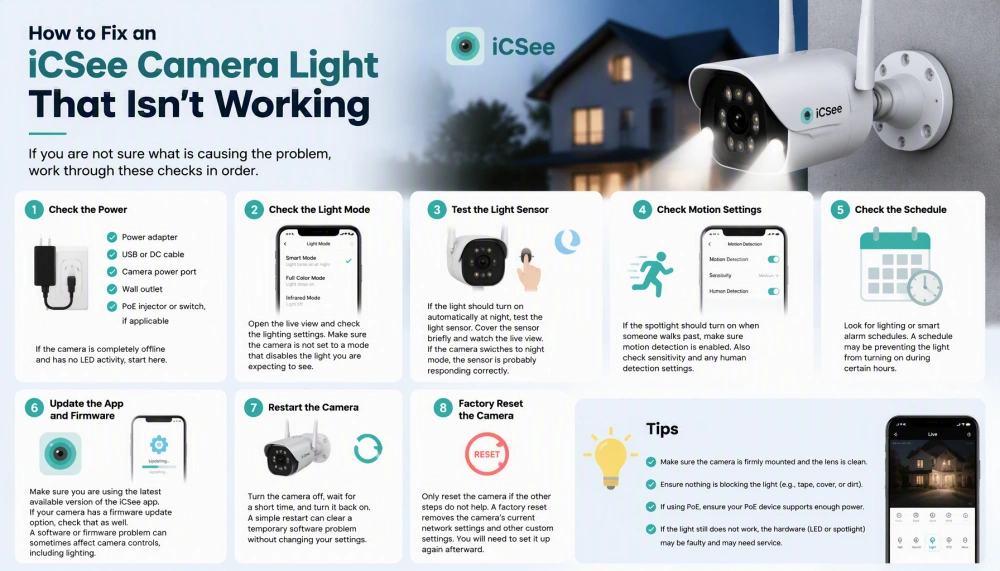
If you are not sure what is causing the problem, work through these checks in order.
1. Check the Power
Make sure the camera is receiving stable power.
Check the:
- Power adapter
- USB or DC cable
- Camera power port
- Wall outlet
- PoE injector or switch, if applicable
If the camera is completely offline and has no LED activity, start here.
2. Check the Light Mode
Open the live view and check the lighting settings.
Make sure the camera is not set to a mode that disables the light you are expecting to see.
3. Test the Light Sensor
If the light should turn on automatically at night, test the light sensor.
Cover the sensor briefly and watch the live view.
If the camera switches to night mode, the sensor is probably responding correctly.
4. Check Motion Settings
If the spotlight should turn on when someone walks past, make sure motion detection is enabled.
Also check sensitivity and any human detection settings.
5. Check the Schedule
Look for lighting or smart alarm schedules.
A schedule may be preventing the light from turning on during certain hours.
6. Update the App and Firmware
Make sure you are using the latest available version of the iCSee app.
If your camera has a firmware update option, check that as well.
A software or firmware problem can sometimes affect camera controls, including lighting.
7. Restart the Camera
Turn the camera off, wait for a short time, and turn it back on.
A simple restart can clear a temporary software problem without changing your settings.
8. Factory Reset the Camera
Only reset the icsee camera if the other steps do not help.
A factory reset removes the camera’s current network settings and other custom settings. You will need to set it up again afterward.
What If the Light Works but the Nighttime Picture Looks Wrong?
A working light does not always mean the nighttime image will look good.
If the spotlight or infrared LEDs turn on but the image looks white, foggy, hazy, or washed out, check the camera lens.
Dust, spider webs, water droplets, and condensation can reflect infrared light back into the lens. This can make the entire image look bright or blurry even though the camera’s light is working normally.
Clean the lens gently with a soft, dry cloth and check the camera again.
Also look for objects very close to the lens. A wall, roof edge, or nearby surface can reflect the camera’s own infrared light back into the sensor.
If the problem continues, it is better to troubleshoot the night vision image separately rather than changing the light settings again.
What If the Camera Goes Black at Night?
If the camera shows a normal picture during the day but the video becomes completely black after dark, do not assume that the light is the only problem.
The camera may have a night vision problem, a power problem, or a video streaming problem.
Check whether:
- The camera is still online
- The infrared or white light turns on
- The live view is still connected
- The power adapter is stable
- The camera switches correctly between day and night mode
If the camera loses video completely, troubleshoot the video connection separately.
How to Prevent iCSee Camera Light Problems?
A few simple habits can reduce light and night vision problems.
Keep the Lens and Sensor Clean
Dust and spider webs can affect both the image and the light sensor.
Clean the camera from time to time, especially if it is installed outdoors.
Avoid Strong Light Sources
Do not point the camera directly at a bright lamp or install it right next to a powerful outdoor light.
Strong nearby light can affect automatic day and night switching.
Keep the Camera Dry
Water and condensation can affect the lens and electronics.
If you often see fog or water droplets inside or around the lens, check the camera’s installation and weather protection.
Keep the Firmware Updated
If your icsee camera supports firmware updates, check for updates from time to time.
This can help avoid software problems with camera controls and other functions.
Frequently Asked Questions
Why is my iCSee camera light not turning on at night?
First, check the light mode and the light sensor. A nearby porch light or street lamp can make the camera think it is still daytime. If the camera has a manual light control, use it to test the spotlight directly.
Why is my iCSee camera red light blinking?
A blinking red LED often relates to camera setup or network connection, but the exact meaning varies by model. Check the Wi-Fi connection and the camera’s setup status first.
Why does the iCSee spotlight work manually but not with motion?
If the spotlight works when you turn it on manually, check motion detection, sensitivity, light-trigger settings, and schedules. The spotlight itself is probably working.
Can I turn off the white light but keep night vision?
On supported models, yes. You may be able to select infrared-only or another night vision mode in the app. The available options depend on your camera model.
Why does the iCSee light turn on but the image still looks white?
The lens may be dirty, wet, or reflecting infrared light from a nearby surface. Clean the lens and check for condensation, spider webs, or objects close to the camera.
Does a factory reset fix an iCSee camera light problem?
It can fix some software or configuration problems, but it should not be your first step. Check the power, light mode, sensor, motion settings, and firmware before resetting the camera.
Final Thoughts
An iCSee camera light that is not working does not always mean the LED is broken.
The problem may be the status indicator, night vision light, spotlight, motion settings, light sensor, Wi-Fi connection, or power supply.
The fastest way to find the cause is to identify which light is affected first. Then test the simplest things before changing advanced settings or performing a factory reset.
If the light works but your nighttime image still looks wrong, treat that as a separate night vision problem rather than assuming the light is defective.