
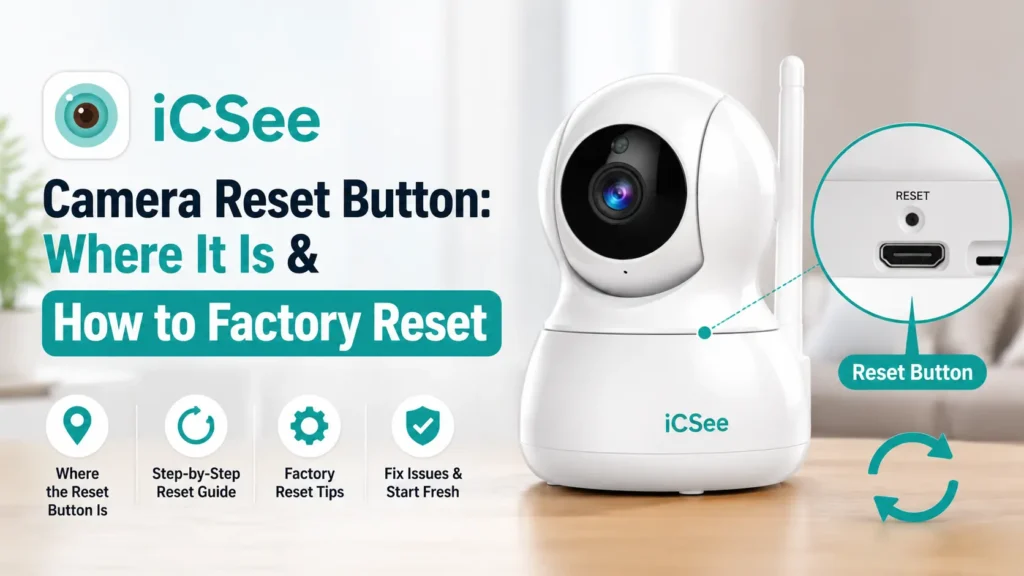


If your iCSee camera suddenly goes offline, forgets the WiFi connection, or stops working correctly, a factory reset may help fix the problem. But before resetting the camera, many users have one common question: where is the iCSee camera reset button?
The icsee camera reset button is usually hidden on the camera body, and its location can be different depending on the model. Finding the right button and using the correct reset steps can save you time and avoid setup problems.
In this guide, we will show you where to find the iCSee camera reset button and explain how to factory reset your camera step by step. You will also learn what happens after a reset and how to reconnect your camera to the iCSee app.
iCSee Camera Reset Button: Common Locations by Camera Type
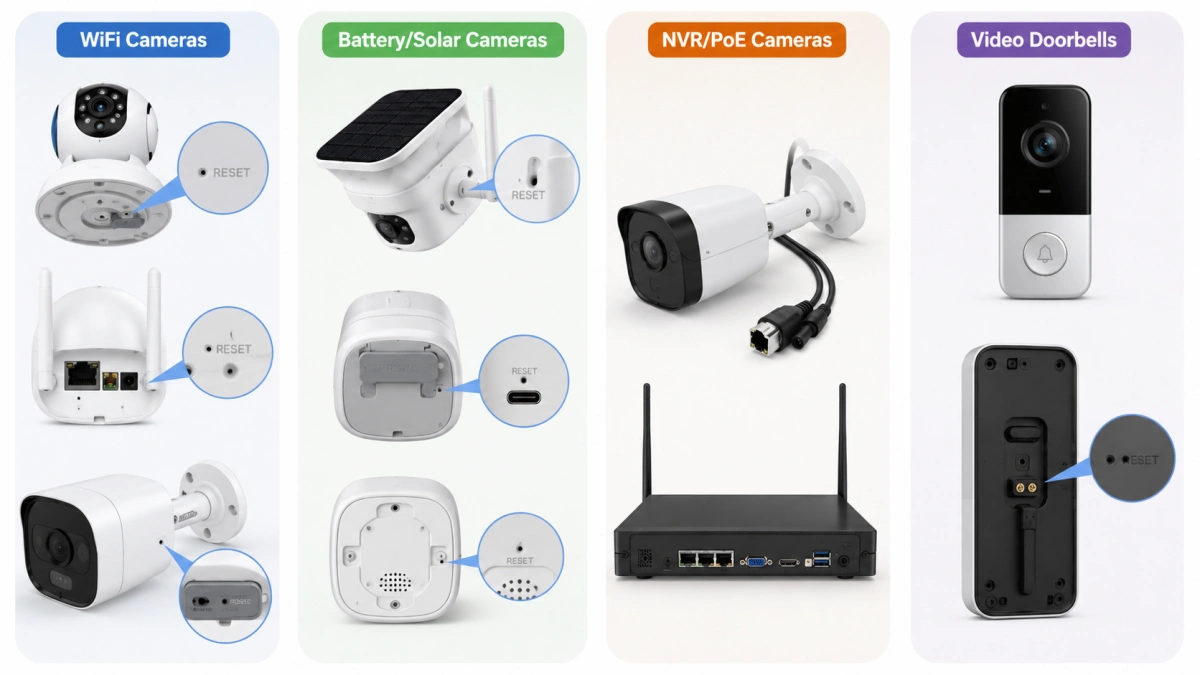
The reset button’s location depends on the camera’s physical design, not on the iCSee app itself. Because iCSee is a viewing app used across many private-label camera and NVR kits, the hardware varies by manufacturer even though the software interface is the same across devices.
Indoor and Outdoor WiFi Cameras
On standalone WiFi cameras, the kind sold as single units for home monitoring, the reset button sits in one of these spots:
- On the underside of the camera base, next to the microSD card slot
- On the back panel, beside the power jack or Ethernet port
- Under a small rubber plug on the camera’s side, meant to keep the pinhole weatherproof on outdoor models
Look for a tiny hole with “RESET” printed or embossed nearby. It’s usually smaller than the microSD slot and requires a thin pin, SIM ejector tool, or straightened paperclip to press.
Battery-Powered and Solar Cameras
Battery and solar-powered iCSee cameras often hide the reset button differently because the housing is fully sealed against weather. On these models, the button sits:
- Behind the antenna mount, accessible after unscrewing or twisting the antenna base
- Under a rubber flap on the bottom of the unit, next to the charging port
- On the back plate, only visible once the mounting bracket is removed
If no pinhole is visible, check the printed quick-start guide included with the camera. Some solar models skip a separate reset pin entirely and instead require holding the physical power button for 10 seconds to trigger a factory reset.
NVR-Connected and PoE Cameras
Cameras wired into a network video recorder (NVR) or digital video recorder (DVR) system frequently skip the individual reset button altogether. Since these cameras receive power and configuration through the recorder, resetting is handled at the NVR level instead. On this setup, the camera housing may have no reset pinhole at all, and any troubleshooting should start from the recorder’s on-screen menu rather than the camera itself.
Video Doorbell Cameras
iCSee-compatible video doorbells usually place the reset button on the back plate, visible once the doorbell is unclipped from its wall mount. Since doorbells run on either battery or hardwired power, the reset process is identical to other WiFi cameras: hold the pinhole button until the LED flashes or a chime sounds, then release.
How to Factory Reset an iCSee Camera (Step-by-Step Guide)
Factory resetting an iCSee camera takes under two minutes once the reset button is located. The process is nearly identical across most WiFi and battery-powered models:
- Confirm the camera has power. Plug in the adapter or confirm the battery has charge; pressing the reset button does nothing on a camera with no power.
- Locate the pinhole reset button using the guidance above for your camera type.
- Insert a thin pin or paperclip into the hole and press down until you feel resistance against the internal switch.
- Hold for 5 to 10 seconds. Many models beep, flash the LED rapidly, or play a voice prompt such as “restoring factory settings” once the hold time is reached.
- Release the button and wait. The camera reboots on its own, which usually takes 30 to 60 seconds.
- Re-add the camera in the iCSee app. Open the app, tap the add-device icon, and scan the QR code printed on the camera or its packaging.
If the camera doesn’t beep or flash during step 4, hold for a few extra seconds before releasing. Some models require a slightly longer press, particularly outdoor and solar units with sealed housings that add resistance to the internal switch.
What Happens After You Reset an iCSee Camera?
A factory reset erases every custom setting and returns the camera to the state it was in when it left the factory. This includes:
- WiFi network credentials: the camera forgets the SSID and password it was previously connected to.
- Device password: login credentials revert to the manufacturer default, often printed on a sticker on the camera body.
- Motion detection zones and schedules: any custom detection areas or recording schedules are cleared.
- App and cloud pairing: the camera disappears from the previous iCSee app account and must be re-added.
- Recorded footage on the microSD card: this is generally not erased by the reset button itself, since footage lives on the card, not the camera’s internal memory.
Because the reset removes the WiFi connection, the camera cannot rejoin the network automatically. It enters pairing mode instead, broadcasting a signal the iCSee app can detect once you scan the QR code and re-enter the current WiFi password. Footage already saved to a cloud account tied to the app remains untouched, since that data is stored remotely rather than on the camera.
Reset Button vs. App Reset: Which Method Should You Use?
The physical icsee camera reset button and the in-app reset option solve different problems, and choosing the right one saves time. The button is the better choice when the camera is completely unresponsive or offline; the app option works only when the camera is still online and reachable.
| Method | When to Use | What It Requires | Result |
|---|---|---|---|
| Physical reset button | Camera is offline, frozen, or has a forgotten password | Physical access to the camera and a thin pin | Full factory reset; WiFi and password cleared |
| iCSee app reset (Settings > Advanced) | Camera is online and visible in the app | An active app connection to the camera | Full or partial reset depending on the menu option chosen |
| NVR/DVR menu reset | Camera has no standalone reset button | Access to the recorder’s local menu or web interface | Resets the specific camera channel without affecting other channels |
If the app can still see the camera, the in-app reset avoids the need to physically locate the pinhole. If the app shows the camera as offline, the physical button is usually the only reliable option left.
Troubleshooting: iCSee Camera Reset Button Not Working
A icsee camera reset button that produces no response is almost always a power, timing, or access problem rather than a broken button. Work through these checks in order before assuming the hardware has failed.
- Check the power source first. A camera with no power supply cannot process a reset command, no matter how long the button is held.
- Hold longer than 10 seconds. Some models, particularly newer solar and battery units, need up to 15 seconds of continuous pressure before they respond.
- Confirm you’re pressing the right hole. On cameras with both a reset pinhole and a microSD slot next to each other, it’s easy to press the wrong one by mistake.
- Use a thinner pin. A pin that’s too thick may not fully depress the internal switch, even if it appears to go in.
- Rule out an NVR-based setup. If the camera is part of a wired kit, the reset likely needs to happen through the recorder, not the camera itself.
- Inspect for physical damage. A cracked or corroded pinhole cover, common on older outdoor cameras exposed to weather, can prevent the button from making contact with the switch inside.
If none of these steps trigger a response, the camera may have a hardware fault, and contacting the manufacturer’s support channel is the next step rather than repeating the same reset attempt.
Frequently Asked Questions for iCSee Camera Factory Reset
Q1. Why can’t I pair the camera to iCSee after reset?
The camera only supports 2.4GHz Wi-Fi instead of 5GHz networks. Remove old device records on your app, move your phone near the camera, then input the correct Wi-Fi password to finish network pairing step by step.
Q2. Do access passwords return to factory settings after reset?
All personalized login and playback passwords will revert to original default data marked on the camera label. Remember to update the default password immediately after successful device addition to prevent unauthorized access and privacy leakage.
Q3. What if my iCSee camera has no reset button at all?
Cameras connected to an NVR or DVR often skip the individual reset button because the recorder manages their settings directly. In that case, reset the camera channel from the recorder’s menu, or use the reset option inside the iCSee app if the camera is still online.
Q4. Will resetting my iCSee camera delete recorded footage?
A factory reset clears WiFi settings, passwords, and app pairing, but it generally does not erase footage stored on a microSD card, since that data lives on the card rather than in the camera’s internal memory. Footage stored on a cloud account tied to the app is also unaffected, since it is stored remotely rather than on the camera itself.
Q5. Do I need to format the SD card after camera reset?
Regular use does not require formatting the memory card manually. You only need to format it inside the iCSee app when you meet abnormal recording, missing video clips or damaged video files from previous use.
Conclusion
Resetting an iCSee camera comes down to finding the right pinhole, holding it for the correct amount of time, and knowing what to expect once the camera reboots. The physical reset button remains the most reliable fix for an offline or unresponsive camera, while the app or NVR menu handles the cases where no physical button exists. Once the reset finishes, re-pairing through the QR code takes only a minute or two. Keep the camera’s quick-start guide or box handy, since the QR code needed for re-pairing is usually printed there rather than on the camera itself.