

You open the iCSee app, ready to check on your front porch or your shop floor, and there it is: a gray thumbnail and one word that ruins your morning — “Offline.” Maybe it happened overnight. Maybe it’s been offline for three days and you only just noticed. Either way, you’re not alone, and the fix is usually simpler than it looks.
By the end of this guide, you’ll know exactly why your iCSee camera shows offline, how to tell a Wi-Fi problem from a power problem in under two minutes, and what to do when a simple restart doesn’t cut it. We’ll also cover a few causes that most guides skip — like why some iCSee camera models refuse to connect to certain routers no matter how many times you reboot them.
What Does “Offline” Actually Mean on an iCSee Camera?
When your iCSee camera shows offline, it means the camera has lost its connection to iCSee’s cloud servers — not necessarily that the camera itself is broken. The app checks in with the camera through the internet, and if that check-in fails for more than a minute or two, the status flips to offline.
That distinction matters. A camera can lose power and go offline, but a camera can also have full power, a blinking light, and a working local network, yet still show offline because it can’t reach the cloud. Knowing which situation you’re in saves you from restarting the wrong thing three times before you find the real cause.
Router and Wi-Fi Problems That Take an iCSee Camera Offline
Wi-Fi issues cause most offline reports, and they usually fall into one of five patterns.
| Problem | How to Spot It | Fix |
|---|---|---|
| Router rebooted or lost power | Other devices also lost connection briefly | Wait 2–3 minutes after router restarts, then recheck the app |
| Wi-Fi password changed | Camera worked fine until a recent router update | Reconnect the camera through the app’s Wi-Fi setup and enter the new password |
| Camera on 5GHz network | Camera never connected in the first place, or dropped after a router swap | Most iCSee camera Wi-Fi connections only support 2.4GHz — switch or create a separate 2.4GHz network |
| Router MAC filtering or AP isolation | Camera shows connected on the router but not in the app | Disable MAC address filtering or AP/client isolation for the camera’s device |
| Too many devices on the network | Multiple smart devices drop out randomly | Reduce connected devices or upgrade router bandwidth |
The 5GHz issue trips up more people than you’d think, mostly because router apps don’t always make it obvious which band a device joined. If your camera worked for weeks and then suddenly went offline after you bought a new router, this is worth checking first.
Is Your iCSee Camera App Out of Date?
An outdated app can show a camera as offline even when the camera itself is working fine. iCSee pushes updates to keep the app in sync with camera firmware, and skipping a few versions sometimes breaks that sync.
Check your app store for pending updates, install the latest version, then force-close and reopen the app. This single step resolves a surprising number of offline reports, especially right after iCSee rolls out a new update.
Power and Connection Issues Behind an Offline iCSee Camera
If Wi-Fi checks out, the next place to look is power. A camera that’s losing power intermittently will bounce between online and offline instead of just sitting offline permanently.
- Check the power adapter and cable for visible damage or loose connections.
- For solar-powered or battery models, confirm the battery isn’t drained — low battery often triggers offline status before the camera fully shuts down.
- Try a different power outlet to rule out a faulty socket.
- For wired models, check the Ethernet cable and swap it if you have a spare.
- Look at the camera’s LED indicator — a solid or blinking light usually means power is fine; no light at all points to a power issue.
Outdoor cameras exposed to heavy rain or extreme cold sometimes show intermittent power drops too. If your camera keeps going offline only during bad weather, that’s a strong clue the connector or seal needs checking rather than the network.
How Distance and Signal Strength Affect Your iCSee Camera?
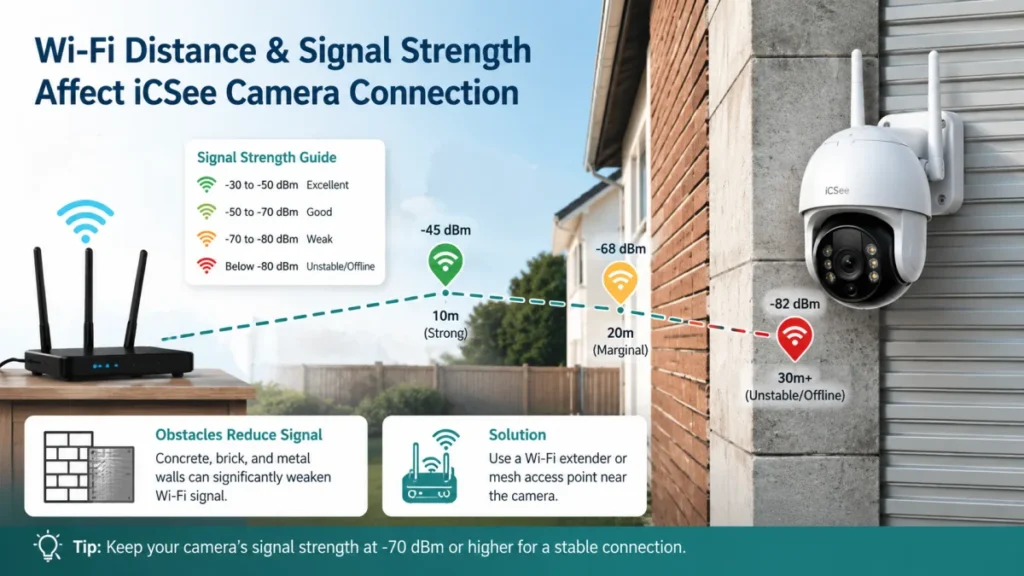
A weak Wi-Fi signal is another common reason a camera drops offline, especially for units placed at the edge of your property or behind thick walls. A camera can technically stay “connected” while receiving such a weak signal that the app can’t maintain a stable session with it.
As a rough guide, most iCSee camera models need a signal strength of at least -70 dBm to stay reliably online — anything weaker and you’ll see frequent, unpredictable disconnections. If you can check your router’s admin panel, look up the signal strength for the camera specifically rather than guessing based on how far away it looks.
A Wi-Fi extender or mesh access point near the camera often solves this without needing to move the camera itself. According to the FCC’s guidance on wireless connections, physical obstructions like concrete and metal siding can significantly reduce Wi-Fi range, which explains why outdoor cameras mounted on brick or metal often struggle more than indoor ones.
Could the iCSee Server Be Down, Not Your Camera?
Sometimes the problem isn’t on your end at all. If several of your cameras go offline at the same time, across different networks and locations, that points to a server-side outage rather than a local issue.
Check iCSee’s official social media or support channels for any announced outages before you spend an hour troubleshooting your router for nothing. This is one of the most overlooked causes, mainly because most guides assume the problem always sits with the user’s setup.
Step-by-Step: How to Get Your iCSee Camera Back Online
If you want one sequence to run through instead of jumping between sections, follow these steps in order:
- Check the app for available updates and install them.
- Confirm the camera has power — look for a solid or blinking LED.
- Restart your router and wait 2–3 minutes before checking the app again.
- Confirm the camera is on a 2.4GHz network, not 5GHz.
- Move the camera closer to the router temporarily to rule out a weak signal.
- Reconnect the camera through the app’s iCSee camera setup guide if the Wi-Fi password recently changed.
- Restart the camera itself by unplugging it for 10 seconds, then plugging it back in.
- Check for a server outage if multiple cameras are affected at once.
Most cases get resolved somewhere between steps 1 and 4. If you’ve gone through all eight and the camera is still offline, that usually points to a hardware fault rather than a network or app issue.
When to Reset or Replace Your iCSee Camera?
A factory reset should be your next move once you’ve ruled out power, Wi-Fi, and app issues. Hold the reset button (usually on the bottom or back of the camera) for 8–10 seconds until you hear a voice prompt or see the LED flash rapidly, then set the camera up again from scratch through the app.
If the camera won’t hold a reset, won’t power on at all, or keeps dropping offline within minutes of reconnecting no matter what you try, the issue is likely internal hardware — a failing Wi-Fi chip is a common culprit in units that are a few years old. At that point, check your iCSee camera firmware update status one more time, and if the camera is still under warranty, contact support instead of troubleshooting further.
Frequently Asked Questions About iCSee Camera Offline
Why does my iCSee camera keep going offline and online repeatedly?
This pattern almost always points to a weak or unstable Wi-Fi signal rather than a dead camera. Check the signal strength at the camera’s location, and try moving it closer to the router or adding a Wi-Fi extender nearby.
Can I use my iCSee camera without Wi-Fi?
No, standard iCSee cameras need an internet connection, either through Wi-Fi or a wired Ethernet connection depending on the model, to send live video and alerts to the app. Some 4G models are the exception, since they connect through a cellular network instead.
Does resetting my router fix an offline iCSee camera?
Often, yes. A router restart clears temporary connection issues and forces devices, including your camera, to reconnect fresh. Give it 2–3 minutes after the restart before checking the app, since the camera needs time to rejoin the network.
What happens if I change my Wi-Fi password?
Your iCSee camera will go offline immediately because it’s still trying to connect with the old password. You’ll need to go through the app’s Wi-Fi setup process again and enter the new password to bring it back online.
Is it normal for an iCSee camera to show offline after a power outage?
Yes, this is expected. The camera and router both need to fully restart and reconnect once power returns, which can take a few minutes. If it’s still offline after 10 minutes, work through the troubleshooting steps above.
Why does my iCSee camera show offline even though the light is on?
A lit LED means the camera has power, but it doesn’t guarantee an internet connection. This usually points to a Wi-Fi issue, a wrong network band, or a temporary server problem rather than a hardware fault.