
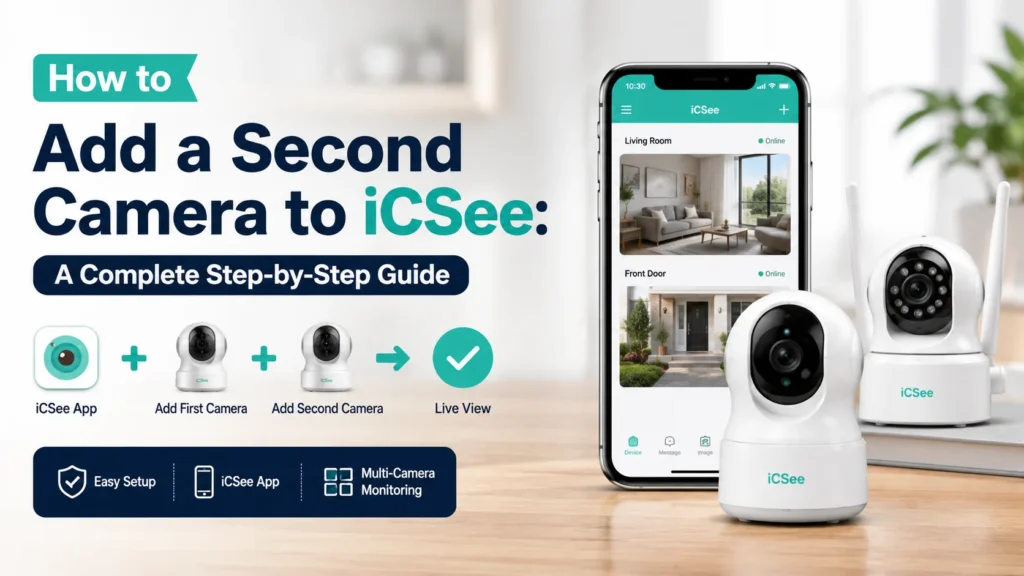


You finally got your first iCSee camera working. The live feed loads, the motion alerts pop up on time, and you feel pretty good about it. Then you buy a second camera for the backyard, or the garage, or the front porch, and suddenly the app doesn’t feel so simple anymore. Where’s the button? Does it use the same account? Will it mess up the camera you already have running?
This guide walks through the whole process of how to add a second camera to iCSee, from the account setup you probably skipped the first time to the WiFi and AP mode methods that actually get a stubborn camera to connect. Along the way, you’ll also get answers to a few things most guides skip entirely, like exactly how many cameras iCSee will let you view at once, why a dual-lens camera behaves differently from a second standalone unit, and what to do when the app finds your camera but refuses to add it.
Why Adding a Second Camera to iCSee Feels Trickier Than the First One
The short answer is that it usually isn’t harder, it’s just less familiar. When you set up your first iCSee camera, the app walked you through account creation and WiFi pairing as one continuous flow. A second camera skips straight to the pairing step, so if you forgot which WiFi band you used or which method (QR code, AP mode, or direct WiFi) worked last time, the process can feel unfamiliar even though nothing has actually changed.
There’s also a real technical wrinkle worth knowing upfront: iCSee treats every physical camera as a separate device tied to your account, even if two cameras sit on the same shelf. A dual-lens camera, on the other hand, is registered as one device with two video streams. That distinction matters later when troubleshooting, so keep it in the back of your mind as you go through the steps.
Before You Start: What Every Camera Needs to Join Your iCSee Account
Every iCSee camera, whether it’s your first or your fifth, needs three things before it will successfully pair: a stable power source, an active 2.4GHz WiFi connection, and the same iCSee account you already used. Skipping any one of these is the most common reason a second camera won’t add.
- Power the new camera on and wait about 30 to 60 seconds for the LED to start flashing, which signals it’s ready to pair.
- Connect your phone to your home WiFi network before opening the app, not after.
- Confirm the network is broadcasting on 2.4GHz. iCSee cameras are not compatible with 5GHz WiFi, and this single detail causes more failed setups than anything else on this list.
If your router broadcasts one combined network name for both bands, you may need to temporarily split them or check your router settings for a 2.4GHz-only guest network. This is one of those details that rarely gets mentioned until you’re already frustrated, so it’s worth checking first.
How Do You Add a Second WiFi Camera to iCSee?
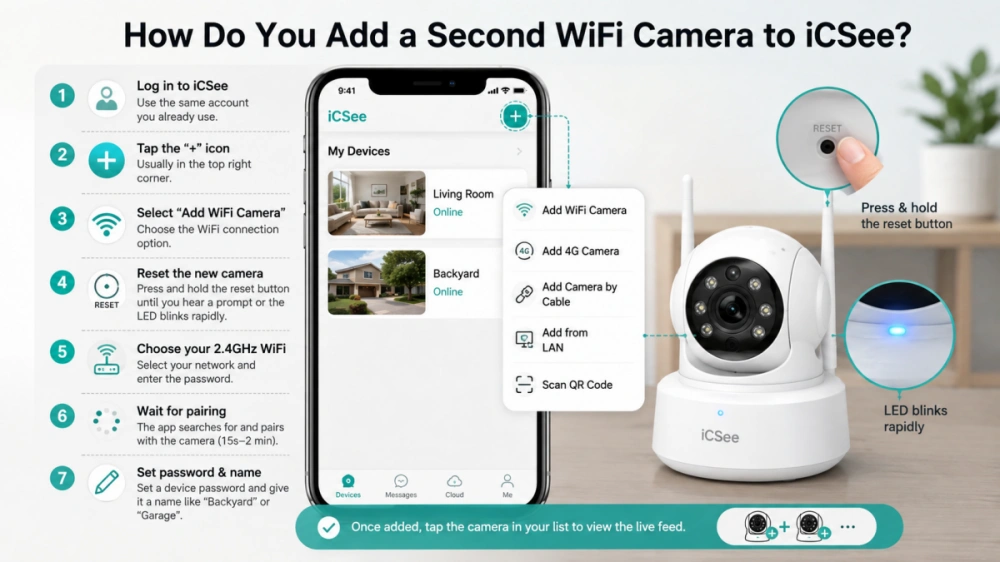
Adding a second WiFi camera follows almost the exact same flow as the first one. The app doesn’t limit how many times you can go through this process, so don’t worry about disrupting the camera you already have set up.
- Open the iCSee app and log in with the account you already use, don’t create a new one.
- Tap the “+” icon, usually in the top right corner of the device list screen.
- Select “Add WiFi Camera” from the list of connection methods.
- Press and hold the reset button on the new camera for a few seconds until you hear a voice prompt or see the LED start blinking rapidly.
- Choose your 2.4GHz WiFi network from the list and enter the password.
- Wait while the app searches for and pairs with the camera, this can take anywhere from 15 seconds to a couple of minutes.
- Set a device password when prompted, then give the camera a distinct name like “Backyard” or “Garage” so it’s easy to tell apart from your first one.
Once the camera shows up in your device list, tap it to confirm the live feed loads properly. If you’re setting up a network for the first time or want a broader refresher on getting cameras online, our guide to setting up a WiFi security camera covers the networking basics in more depth.
What If Your Second Camera Doesn’t Support Direct WiFi Pairing?
Some cameras, particularly 4G/5G models or ones without a built-in WiFi antenna configuration screen, need a different pairing method. iCSee supports two alternatives for these cases: AP mode and QR code scanning.
- On the Add Device screen, tap “Add camera (AP mode).”
- Press the camera’s reset button three times to force it into AP mode, the camera itself becomes a temporary WiFi hotspot.
- Go to your phone’s WiFi settings and connect to that camera hotspot directly.
- Return to the iCSee app, select your home WiFi network, and enter the password.
- Wait for the app to hand the camera off from its own hotspot to your home network.
For QR code pairing, the process is even shorter: tap “Scan QR Code to Add a Camera,” point your phone at the sticker on the camera body or the code shown on screen during setup, and confirm. This method is especially handy when adding a camera someone else already configured and is sharing with you, since it skips manual serial number entry entirely.
How Many Cameras Can You Actually Add to iCSee?
There’s technically no hard cap on how many cameras you can link to a single iCSee account, you can add as many devices as you own. The limitation isn’t storage or account capacity, it’s the viewing screen. iCSee typically displays up to four camera feeds at once in the standard multi-view layout.
| What You’re Asking | Answer |
|---|---|
| Maximum cameras per account | No fixed limit, add as many as needed |
| Cameras viewable at the same time | Up to 4 in one screen layout |
| Cost per additional camera | Full price per device, no bundled discount through the app |
| Can cameras be grouped or renamed | Yes, each device can be labeled and organized separately |
So if you’re planning a five or six camera setup, the app will happily manage all of them, you’ll just be swiping between screens or grouping cameras by location to see everything at once. This is worth knowing before you buy, because a lot of people assume there’s a device cap and there simply isn’t one.
Second Camera Not Showing Up? Here’s How to Fix It
When a second camera won’t pair, the cause is almost always one of a handful of predictable issues rather than a broken app or a defective unit.
| Symptom | Likely Cause | Fix |
|---|---|---|
| App can’t find the camera during search | Phone connected to 5GHz network | Switch phone to the 2.4GHz band before pairing |
| Camera pairs but never comes online | WiFi password entered incorrectly | Reset the camera and re-enter the password carefully |
| No voice prompt after reset | Camera held reset for too short a time | Hold reset for a full 10 seconds, release, then try again |
| Camera added but feed freezes constantly | Weak signal or outdated app version | Move the camera closer to the router and update the app |
| Camera shows offline after 180+ seconds with no sound | Device stuck mid-reset | Fully reset the device and restart the pairing process |
If none of these apply, check that your router isn’t blocking new device connections, some routers have a MAC address filter or guest isolation setting that quietly prevents new devices from joining. For a deeper walkthrough of connection issues beyond the second-camera scenario, our iCSee app troubleshooting guide covers offline errors and app crashes in more detail.
Dual-Lens Cameras: A Different Kind of “Second Camera”
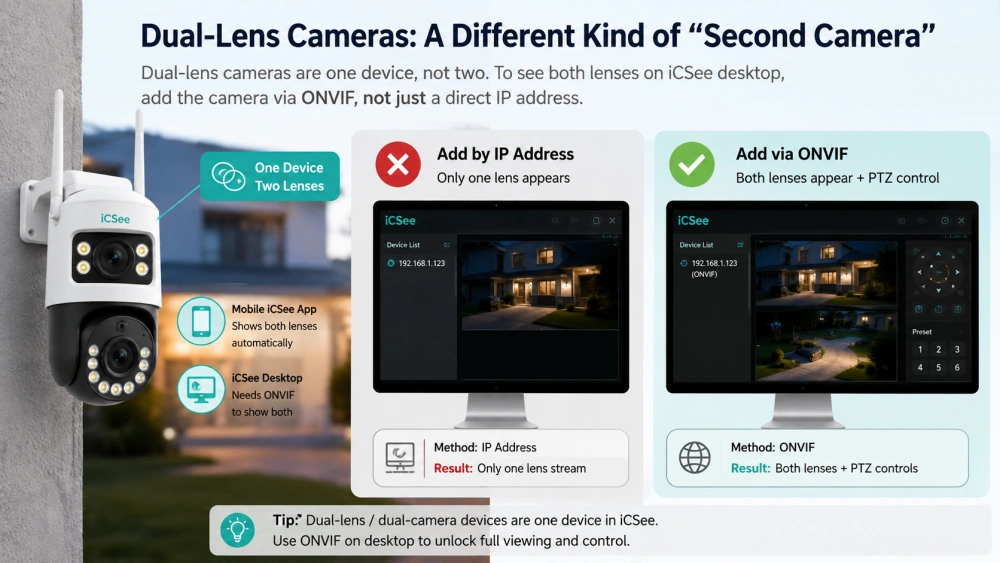
Here’s a detail that trips up a lot of people and rarely gets explained clearly: a dual-lens or dual-camera device, like a floodlight camera with two separate lenses, is not the same as owning two individual cameras. iCSee registers it as a single device, and on mobile the app usually shows both lenses without extra setup.
The confusion shows up mostly on the iCSee desktop software. If you add a dual-lens camera using its plain IPv4 address, only one lens tends to appear in the feed. The fix is to add the device through ONVIF instead of a direct IP address. Doing so pulls in both the upper and lower lens streams together, along with PTZ controls if the camera supports pan-tilt-zoom. It’s a small configuration choice, but it’s the difference between seeing half your camera’s coverage and seeing all of it.
How Do You Share a Second Camera With Family Members?
Once your second camera is added, you might want other household members to view it from their own phones without sharing your login credentials. iCSee supports this through camera sharing rather than account sharing, which keeps everyone’s login separate and secure.
- Open the live view of the camera you want to share and tap the settings icon.
- Go to the device’s “About” or sharing section to display its QR code.
- Have the family member open iCSee on their own device, tap “+,” then choose “Scan QR Code to Add a Camera.”
- Alternatively, they can enter the camera’s serial number manually if scanning isn’t convenient.
Shared users typically get view-only access unless you grant additional permissions, so your original account stays in control of settings like motion sensitivity and recording schedules. If you’re building out a household setup with multiple people checking feeds, it’s worth pairing this with a look at how different WiFi security camera models handle multi-user access, since not every brand treats shared viewers the same way.
Frequently Asked Questions
Can I add two cameras to one iCSee account?
Yes. There’s no restriction on linking multiple cameras to a single account. Each one is added separately through the same “+” button and shows up as its own entry in your device list, so you can name, organize, and manage them independently.
Why can’t I see two cameras at the same time on iCSee?
If both cameras are added correctly but only one displays, check that you’re using the multi-view or grid layout in the app rather than single-camera view. If a dual-lens camera is involved, make sure it’s added through ONVIF on desktop software, since IP-address-only setups often show just one lens.
Does adding a second camera require 5GHz WiFi for better quality?
No, and trying to use 5GHz will actually stop the camera from pairing. iCSee cameras are built for 2.4GHz networks only, regardless of how many cameras you’re adding or what resolution they support.
What happens if the app finds my second camera but the connection keeps failing?
This usually points to a WiFi password typo or a weak signal between the camera and router. Reset the camera fully, move it temporarily closer to the router for setup, and re-enter the password slowly to rule out a simple typing error before assuming there’s a hardware problem.
Can I add a second camera without creating a new account?
Yes, and you should. Adding a second camera under a new account splits your devices across two separate logins, which means you’d need to switch accounts just to check both feeds. Always log in with your existing account before adding any additional device.