

You tap the talk button, say something to whoever’s at the door, and nothing. No response, no sign the camera even heard you. Or maybe it’s the opposite: you can hear them just fine, but they have no idea you’re talking. Either way, the two-way audio on your iCSee camera has quietly stopped doing the one thing that made it more than just a video feed.
The good news: this almost never means the camera is broken. In the vast majority of cases, it’s one of three things — a talk mode you didn’t know existed, a volume slider set too low, or a microphone permission your phone quietly turned off. This guide walks through each cause, tells you exactly where to tap, and only points to hardware failure once everything else has been ruled out.
What Does iCSee Two-Way Audio Actually Need to Work?
iCSee two-way audio lets you speak through your phone and have your voice play out of the camera’s built-in speaker, while the camera’s microphone sends sound back to your phone. For this to work, four separate things all have to line up at once: the camera needs working microphone and speaker hardware, the iCSee app needs microphone permission on your phone, your account needs a stable connection to the camera (local or through the cloud), and the audio settings inside the app need to be turned on rather than muted.
That’s four different failure points hiding behind one symptom. The list below covers each one, starting with the most common.
Two Talk Modes in the iCSee App (Most People Only Know One)
Before troubleshooting anything else, it’s worth knowing that iCSee actually offers two different ways to talk through the camera — and by default, the app only shows you one of them. A lot of “broken” two-way audio isn’t broken at all, it’s just being used the wrong way.
- Push-to-talk (the default mode). On the live view screen, you’ll see a small microphone icon. You have to press and hold it while you speak — small ripple animations on screen confirm your voice is being sent. Release it, and the camera’s audio plays back to you. Tapping it briefly instead of holding it is the single most common reason people think the mic “isn’t working” — it simply never registered as a hold.
- Full-duplex voice call mode (easy to miss). Open the settings icon on the live view screen, go to Basic Settings, and turn on Full Duplex Voice Communication. Once it’s on, the microphone icon changes into a phone icon. Tap it once — it turns red, meaning the call is live — and now you can talk and listen at the same time without holding anything down. Tap it again to turn it blue and hang up.
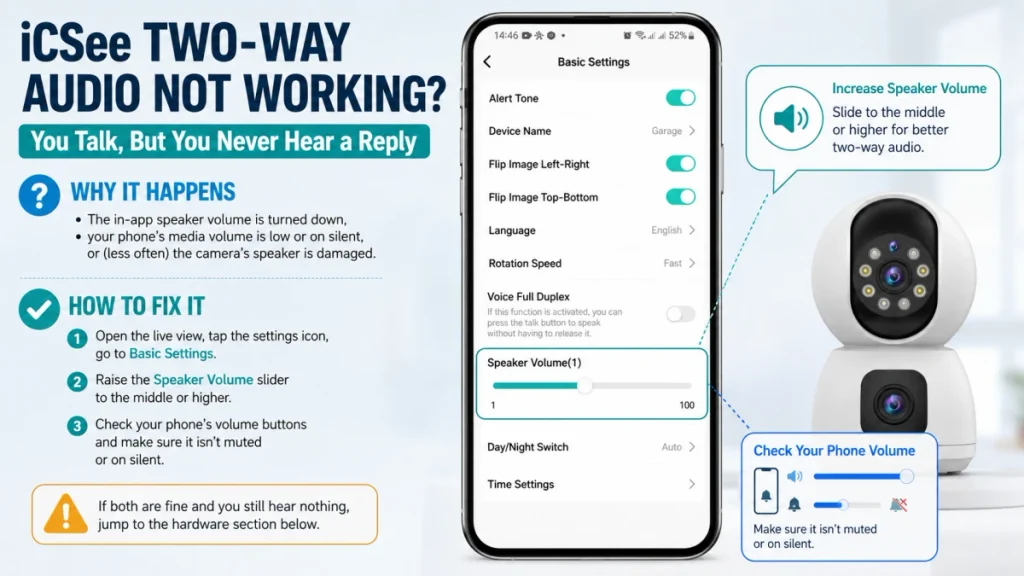
While you’re in Basic Settings, check the Speaker Volume slider on the same screen — if it’s been accidentally dragged down to its lowest level, audio from the camera will be barely audible even though everything else is working correctly. Set it to the middle or higher.
If you’d rather watch this than read it, this video walkthrough from the “ensinando como consertar” channel shows both talk modes and the volume setting on screen, step by step.
Find Your Problem Below
Once you’ve confirmed you’re using the right talk mode, match what you’re experiencing to one of the problems below. Each one lists why it happens and exactly how to fix it.
Problem: No sound either way, no matter what you try
- Why it happens: this is almost always your phone’s operating system quietly blocking the iCSee app from using the microphone — not a setting inside the app itself. It’s especially common right after an app or phone software update, since updates can silently reset permissions back to “not allowed.”
- How to fix it — iPhone: go to Settings > Privacy & Security > Microphone, and make sure the toggle next to iCSee is turned on.
- How to fix it — Android: go to Settings > Apps > iCSee > Permissions > Microphone. You’ll usually see three options — “Allow only while using the app,” “Ask every time,” and “Don’t allow.” Choose “Allow only while using the app.” If it’s set to “Don’t allow,” no amount of tapping the talk button will send your voice anywhere.
- Still nothing after that? Uninstall and reinstall the iCSee app so it asks for microphone permission fresh, and make sure to tap “Allow” when prompted this time.
Problem: You hear them, but they never hear you
- Why it happens: either you’re tapping the talk button instead of holding it down (see push-to-talk above), or your phone’s microphone permission is blocked for iCSee.
- How to fix it: first try holding the microphone icon down for the entire time you’re speaking, or switch to full-duplex mode so you don’t have to hold anything. If that doesn’t fix it, your phone is blocking the mic — follow the microphone permission steps in the problem above.
Problem: You talk, but you never hear a reply
- Why it happens: the in-app speaker volume is turned down, your phone’s own media volume is low or on silent, or (less often) the camera’s speaker is damaged.
- How to fix it: open the live view, tap the settings icon, go to Basic Settings, and raise the Speaker Volume slider to the middle or higher. Then check your phone’s own volume buttons and make sure it isn’t muted or on silent. If both of those are fine and you still hear nothing, jump to the hardware section below.
Problem: Audio is choppy, delayed, or cuts out
- Why it happens: two-way audio is far more sensitive to network quality than plain video streaming. A weak Wi-Fi signal or high latency makes a conversation feel broken even when video looks fine.
- How to fix it: see the network section further down this guide for the full fix.
Problem: The talk button is greyed out or missing entirely
- Why it happens: not every camera sold under the iCSee app actually has a speaker built in. Some budget models only include a microphone and are recording-only, so the app hides the talk feature entirely.
- How to fix it: check your camera’s spec sheet or original product listing to confirm it shipped with two-way audio. If it wasn’t included, there’s no setting that will unlock it — it’s a hardware limitation of that specific model.
Problem: Two-way audio works on Wi-Fi but not on mobile data
- Why it happens: the app defaults to a higher-bandwidth stream that cellular networks sometimes can’t keep up with, especially on a weaker signal.
- How to fix it: in the app’s settings, lower the stream quality specifically for cellular data, then test the talk feature again.
If your camera shows no video at all alongside the audio problem, that’s usually a connection issue rather than an audio-specific one — worth ruling out first before working through the list above.
When the Problem Is Your Network, Not the App
Video can buffer without you noticing much, but audio delay of even half a second makes a conversation feel broken. If your symptom is “it works, but choppy or delayed,” the network is almost certainly the cause — not the app or the camera.
- Move the camera or router closer together if possible — two-way audio needs a steadier signal than one-way video viewing does.
- Pause other devices streaming or downloading on the same network, then test again.
- Check your camera’s overall connection stability. If your camera keeps dropping offline in general, that same instability is very likely the root cause of your audio trouble too — fixing the connection issue usually resolves both at once.
Third-Party Platforms and DVRIP Backchannel Limits
If you’re pulling your iCSee camera’s stream into Home Assistant, a custom NVR setup, or any third-party software rather than using the stock app, two-way audio behaves differently than most guides mention. iCSee and similarly branded cameras run on the DVRIP protocol, and the talk-back feature is handled through a separate backchannel connection rather than being bundled with the video stream. That means audio can appear to work perfectly in the official app while failing entirely through a third-party integration, because the backchannel has to be configured as its own stream rather than a setting you toggle.
If you’ve set this up through a project like go2rtc, the most common failure is the video stream loading fine while the backchannel stays silent, or vice versa — because both directions pull from separate connection strings that need to be defined independently, not one combined URL. Anyone troubleshooting this at the protocol level can check the open-source go2rtc project documentation for the exact backchannel syntax these cameras expect, since it documents the DVRIP handshake in more technical detail than iCSee’s own app-focused support material covers.
This is also worth knowing even if you never touch third-party software: it explains why audio quality on iCSee cameras tends to sound thin or slightly robotic compared to video call apps. Most models transmit audio using the G.711 codec at an 8kHz sample rate, which is standard for surveillance-grade talk-back but noticeably lower fidelity than what you’re used to from phone calls or video chat apps. That’s expected behavior, not a sign anything is broken.
Could It Be a Hardware Problem?
Hardware failure is the least likely cause, but it does happen, especially with outdoor cameras exposed to moisture, dust, or a recent power surge. A camera with damaged audio hardware still shows video normally, since the mic and speaker are separate components from the lens and sensor.
- Signs pointing to hardware: audio never worked, even on the very first setup before any settings were touched; you’ve confirmed both talk modes, volume, permissions, and network are all fine and it still fails; the problem started right after a storm, power outage, or the camera getting wet; or other iCSee cameras on the same account and network work fine but this one doesn’t.
- What to do: try a full factory reset first — it clears out corrupted settings that can sometimes mimic a hardware fault. If the camera still won’t transmit or receive audio after a reset and it’s within warranty, contact the seller rather than keep troubleshooting. Outdoor models are especially prone to speaker damage from water intrusion, even when the housing looks intact from the outside.
Frequently Asked Questions
What’s the difference between push-to-talk and full-duplex mode?
Push-to-talk (the microphone icon) requires you to hold the button while speaking and release it to listen — only one side can talk at a time. Full-duplex mode (the phone icon, enabled in Basic Settings) opens a continuous call where both sides can talk and listen simultaneously, similar to a regular phone call. If you find push-to-talk clunky, switching to full duplex often solves what feels like a “broken” mic.
Can I use two-way audio without an internet connection?
No. Even when you’re on the same local Wi-Fi network as the camera, the iCSee app still routes the audio session through the cloud in most setups, so you need an active internet connection on both the camera and your phone for two-way audio to work, even for local viewing.
Does two-way audio work the same on all iCSee camera models?
Not always. Some budget or older iCSee-compatible cameras only include a microphone with no speaker, which means they can send audio to your phone but can’t play audio back. Check your specific model’s spec sheet, since “two-way audio” is sometimes listed as a feature of the app in general rather than guaranteed on every camera it supports.
Why does my voice sound robotic or delayed through the camera?
This is normal and comes down to the audio codec these cameras use, which prioritizes low bandwidth over call-quality fidelity. A small delay and slightly flat tone is expected, especially on a weaker Wi-Fi connection. Distorted or garbled audio, on the other hand, usually points to a network issue rather than the codec itself.
Does two-way audio drain the camera’s battery faster?
On battery-powered iCSee cameras, yes. Two-way audio keeps an active, higher-bandwidth connection open the entire time you’re using it, which draws noticeably more power than passive video viewing. Frequent long talk sessions on a battery model will shorten the time between charges.
Can two-way audio issues be related to night vision problems too?
They can share a root cause. If your night vision stops working around the same time as audio, that combination often points to a firmware glitch or a connection problem affecting the whole camera, rather than two unrelated faults. Worth ruling out a shared cause before troubleshooting each one separately.