
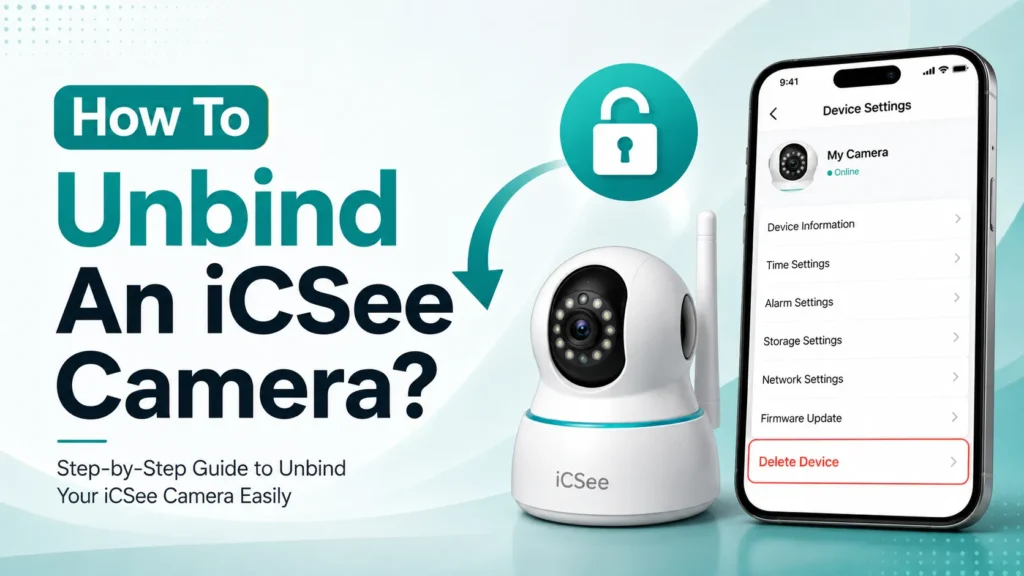

You just bought a used iCSee camera, or maybe you’re handing yours down to a family member, and the app throws up a wall: “This device has been bound to another account.” Now what? You can see the camera. You can plug it in. You just can’t add it to your account, and the settings menu that’s supposed to have an unbind option is nowhere to be found because you’re locked out of the account that owns it in the first place.
This happens more often than you’d think with iCSee cameras, since they use what’s called a “strong binding” system that ties the hardware to one account at a time. By the end of this guide, you’ll know exactly how to unbind an iCSee camera when you still have access to the original account, what to do when you don’t, and why a factory reset alone won’t always fix the problem the way people expect it to.
What Does It Mean When An iCSee Camera Is “Bound”?
Binding is how iCSee links a specific camera, identified by its device ID, to one and only one user account. Once bound, that camera can’t be added to a second account at the same time. This is a security feature, not a bug — it stops random people from adding your camera to their own app and watching your live feed.
The catch is that this binding is stubborn. Deleting the account that owns the camera does not automatically release the device. Resetting your phone doesn’t touch it either, because the binding record lives on iCSee’s servers, tied to the device ID, not to your phone or app installation. So if you inherited a camera, bought one secondhand, or just forgot which of your old accounts added it, you’ll hit that binding wall until it’s cleared.
How To Unbind An iCSee Camera When You Have The Original Account?
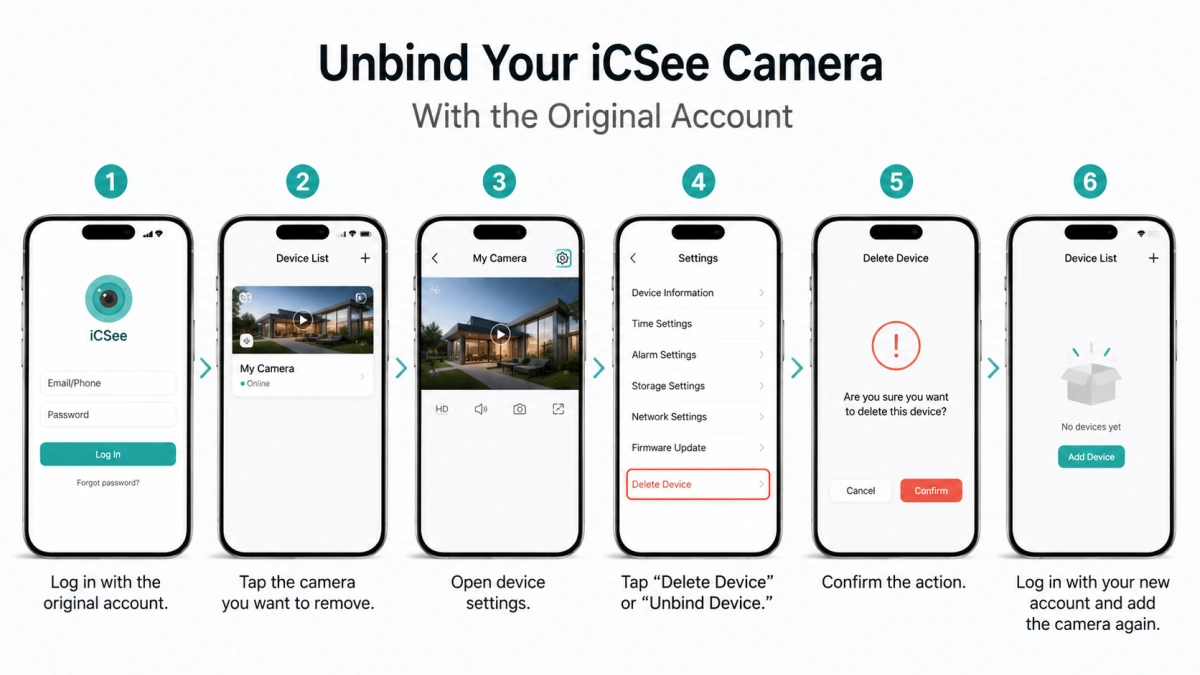
If you still remember the login for the account that first set up the iCSee camera, this is the easy path. Here’s the process.
- Open the iCSee app and log in with the original account — the email or phone number that was used to add the camera the first time.
- Go to the device list and tap on the camera you want to remove.
- Open the device settings, usually reached by tapping the gear or settings icon on the camera’s live view or info page.
- Scroll down and look for “Delete Device,” “Remove Device,” or “Unbind Device.” Naming varies slightly between app versions, but it’s always near the bottom of the settings list.
- Confirm the action. The camera should disappear from that account’s device list within a few seconds.
- Log out, then log in with the account you actually want to use, and add the camera again by scanning its QR code or entering the device ID manually.
If you have several old iCSee accounts and aren’t sure which one has the camera, try logging into each one and checking the device list before assuming the camera is permanently stuck. It’s a common mix-up, especially if you’ve reinstalled the app more than once over the years.
Lost Access To The Original Account? Here’s What Actually Works
This is the situation most people searching for this topic are actually in — you don’t have the password, the email tied to the account isn’t yours anymore, or the person who set it up is unreachable. There’s no built-in “force unbind” button in the app for this, and that’s intentional. Otherwise, anyone could steal a camera and unbind it in thirty seconds.
Here’s what to try, in order.
- Attempt account recovery first. If you know the email or phone number on the original account, try the app’s password reset flow before giving up on it. A lot of “lost” accounts are recoverable in under five minutes.
- Check for a local unbind option. Some iCSee-compatible cameras support unbinding directly through the device’s local network connection rather than through the cloud account. When the app tries to add the camera and detects it’s bound elsewhere, it sometimes offers a prompt to unbind via local GUI, provided your phone and the camera are on the same Wi-Fi network. This bypasses the need to log into the old account entirely.
- Submit a device unbinding request to iCSee support. This is the official route when local unbinding isn’t offered. When the app blocks you from adding a bound device, it typically shows a link or button to file an unbinding application right on that error screen. You’ll need to provide the device ID (which the app captures automatically at the point of failure) along with proof of ownership — a purchase receipt, the original packaging, or photos of the device’s serial number sticker work well.
- Email iCSee support directly if the in-app request stalls. Include your device ID, a description of how you acquired the camera, and any proof of purchase. Support teams generally ask for this anyway, so having it ready the first time speeds things up.
One thing worth knowing upfront: iCSee’s privacy policy means the company won’t just unbind a device on request without verification. That’s a deliberate trade-off — it’s slower for legitimate buyers, but it also means a random person can’t unbind your iCSee camera by pretending to own it.
Does Factory Resetting an iCSee Camera Unbind It?
No, and this trips up a lot of people. A factory reset wipes the camera’s local Wi-Fi and configuration settings, but it does not clear the account binding stored on iCSee’s cloud servers. You can hold that reset button for a full minute, and the app will still tell you the device belongs to another account the moment you try to add it.
That said, a reset is still useful in one specific case: if the device was previously registered but then reset by whoever had it before you, the binding on the server side may have already been released automatically at that point, and you’ll be able to add it fresh. So resetting is worth doing as a first step, but treat it as a “might help” action, not a guaranteed fix. If the app still shows the device as bound after reset, you’ll need to go through the unbinding request process described above.
iCSee Camera Says “Blocked User” Instead Of “Already Bound” — What’s Different?
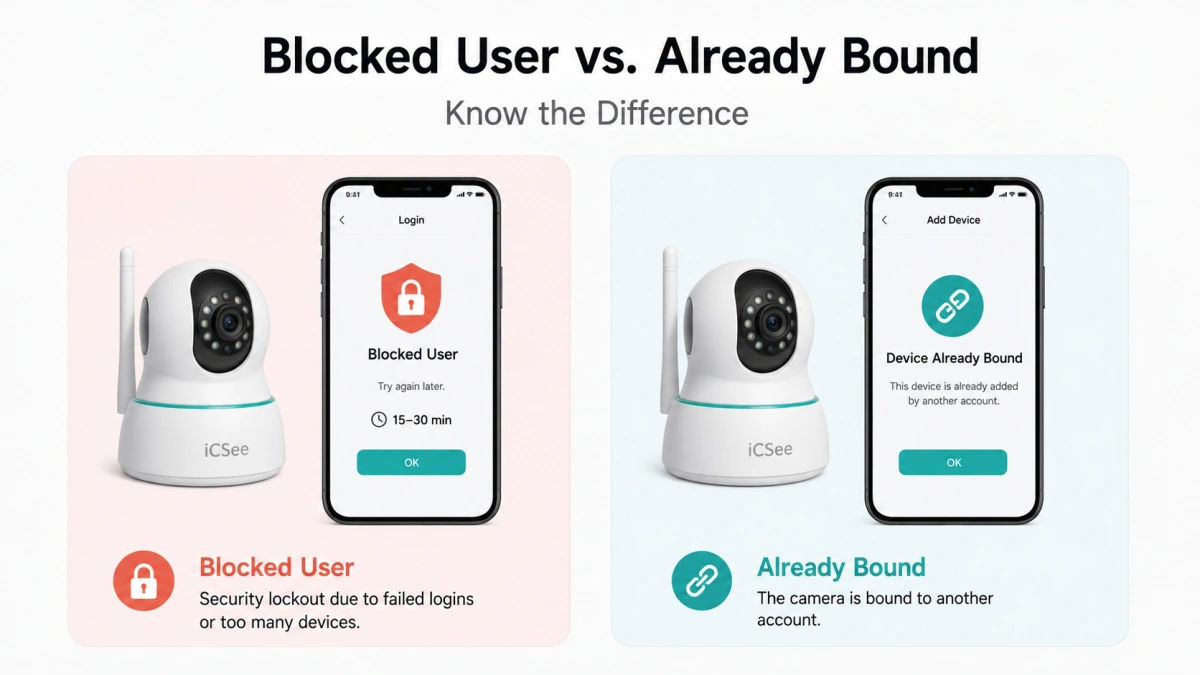
These are two separate errors, and it’s easy to confuse them because both stop you from accessing the camera. A “device already bound” message is about account ownership. A “blocked user” error is a security lockout, usually triggered by several failed login attempts in a row, or by logging into the same account from too many devices at once.
If you’re seeing “blocked user,” unbinding isn’t your problem — you need to wait out the temporary lock (often 15 to 30 minutes) or reset your password. If you’re seeing anything that mentions the device being bound, added, or claimed by another account, that’s when the unbinding steps above apply.
Quick Reference: iCSee Binding Issues And Fixes
| Situation | What To Do |
|---|---|
| You know the original account login | Log in, remove the device from settings, then re-add it under the new account |
| You don’t know the original login but might recover it | Use the app’s password/email recovery before requesting an unbind |
| No access to original account at all | File an unbinding request with your device ID and proof of purchase |
| Camera and phone are on the same Wi-Fi | Try the local GUI unbind option if the app offers it during add-device setup |
| App shows “blocked user” instead of “bound” | Wait out the lockout or reset your password — this isn’t a binding issue |
| Just reset the iCSee camera and it’s still showing as bound | The reset doesn’t clear cloud binding — submit an unbinding request |
How Long Does An iCSee Unbinding Request Actually Take?
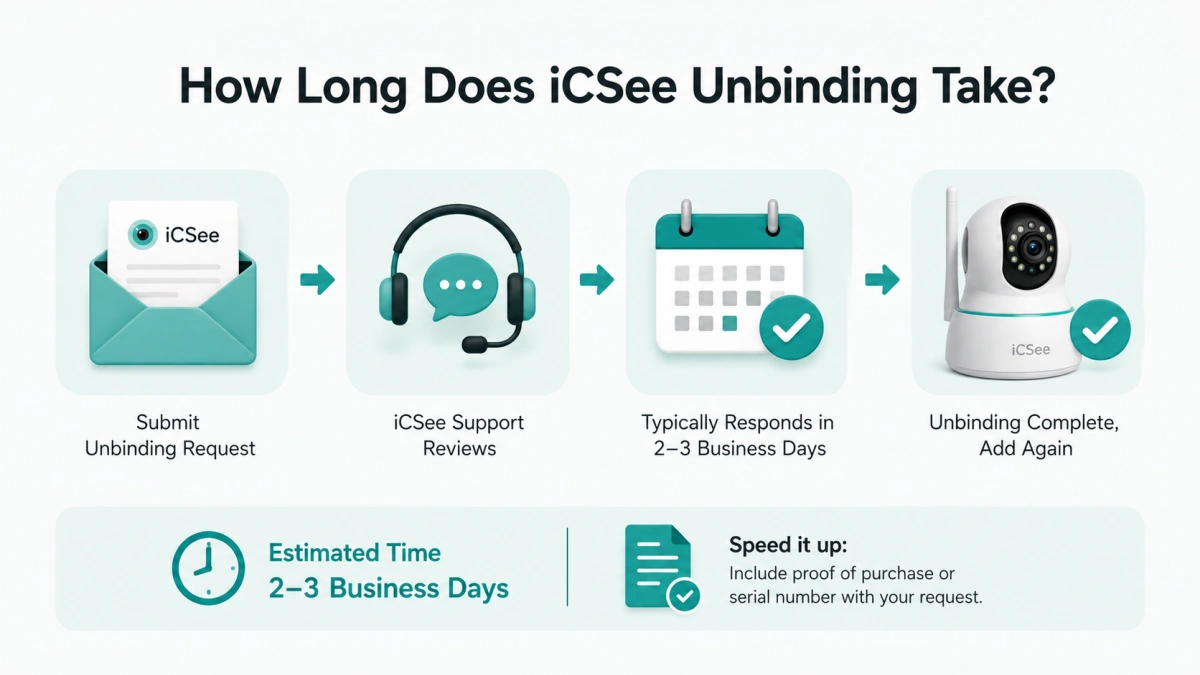
This is the part most guides skip, and it’s usually the first thing people want to know once they’ve submitted a request. In practice, iCSee support typically responds to unbinding applications within a few business days, though turnaround can stretch longer if your proof of ownership is incomplete or if the device ID wasn’t captured correctly during the failed add attempt. To avoid a back-and-forth that eats up a week, submit your receipt or serial number photo with the very first message rather than waiting to be asked for it. Cameras bought secondhand without any paperwork take noticeably longer to verify, since support has to rely on other signals to confirm you’re not trying to hijack someone else’s device.
Buying A Used iCSee Camera? Ask This Before You Pay
If you’re eyeing a secondhand iCSee camera on a marketplace listing, save yourself the headache and ask the seller to unbind it from their account before the sale completes, while they still have login access. It takes them two minutes in the app. Once you’ve paid and they’ve moved on, you’re stuck starting a support ticket instead of just tapping “remove device.” It’s a small ask, but it’s the difference between plugging the camera in and using it same-day versus waiting on a verification process.
Frequently Asked Questions
Can I unbind an iCSee camera without the app?
Not through the standard process — the unbind action lives inside the iCSee app or web portal, since it has to update the account record on iCSee’s servers. The one exception is the local GUI unbind option that appears on some devices during setup when your phone and the camera share the same Wi-Fi network, which works even if you can’t log into the old account.
Does unbinding an iCSee camera erase its recordings?
Unbinding removes the camera from the account’s device list, but it doesn’t erase footage stored on the camera’s own SD card or in local storage. Cloud recordings tied to the old account’s subscription, however, typically become inaccessible once the device is unbound, since that storage is linked to the account, not the camera itself.
What happens if I just delete the old iCSee account instead of unbinding the camera?
The camera stays bound. Deleting the account does not release the device — this is one of the most common mistakes people make. You have to unbind the camera from within the account before deleting it, or the device will remain locked to that account’s ID even after the account itself is gone.
Can the previous owner unbind my iCSee camera remotely after I’ve already added it?
No. Once an iCSee camera is successfully bound to your account, the previous account no longer has any control over it unless you share access back to them or they go through the same unbinding request process you would.
Is there a limit to how many times an iCSee camera can be unbound and re-bound?
There’s no fixed limit published by iCSee — cameras get unbound and rebound routinely with resales, gifting, and account changes. What can slow you down is repeated failed unbinding requests without proper proof of ownership, since that pattern tends to draw more scrutiny from support.
Why does the app say my device ID is unavailable when I try to file an unbind request?
The device ID is only captured by the app at the moment a bind attempt fails, so if you close that error screen before starting the unbind request, you may need to try adding the camera again just to regenerate the ID before you can file the application.