
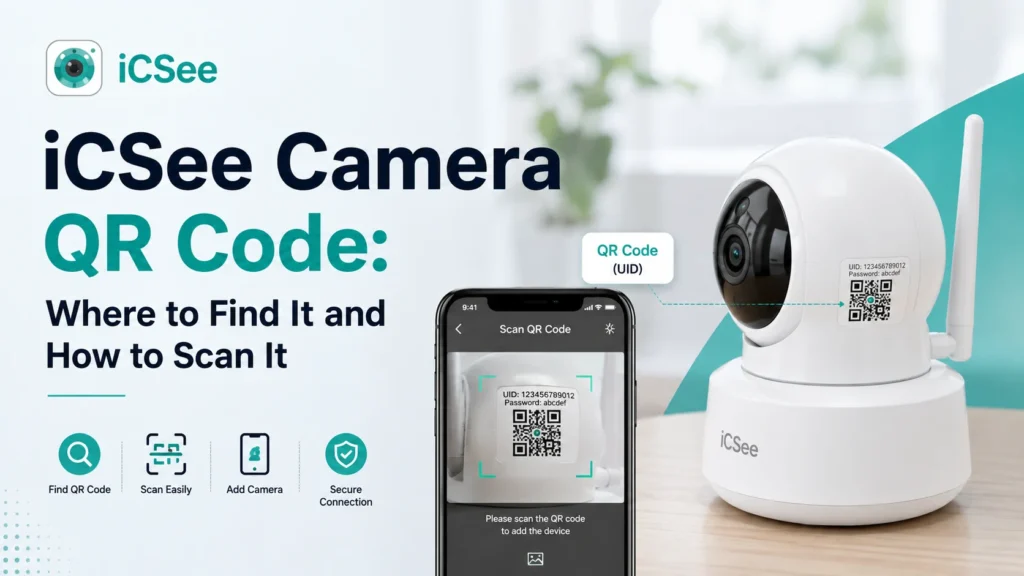


You just pulled a new camera out of the box, opened the iCSee app, and now you’re staring at your screen wondering where this mysterious code is supposed to come from. Or maybe you’ve had the camera running for months, added a second phone, and the app is asking you to scan something you’ve never seen before. Either way, you’re not alone — this is one of the most common sticking points people hit during setup, and it trips up experienced users just as often as first-timers.
By the time you finish this guide, you’ll know exactly where to look for the iCSee camera QR code depending on your situation, how the scanning step actually works (it’s not always what you’d expect), and what to do when the code refuses to scan no matter how many times you try. We’ll also cover what happens if the code gets lost, torn off the box, or simply expires — a detail most setup guides skip entirely.
What Is the iCSee Camera QR Code, Anyway?
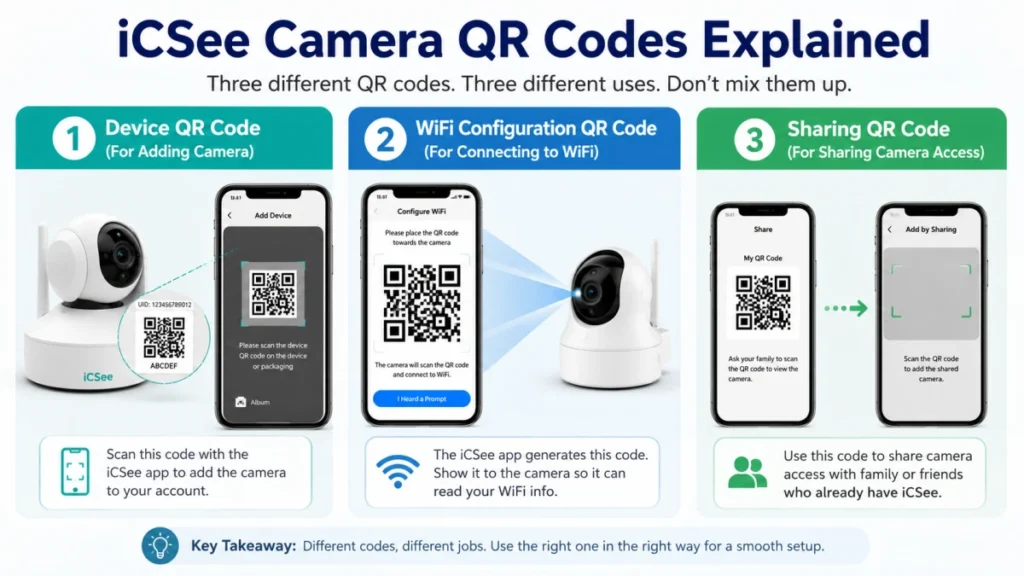
There isn’t just one iCSee camera QR code — there are actually two different ones, and mixing them up is the number one reason setup goes sideways. Understanding the difference solves most confusion before it starts.
The first is the device QR code, a small printed sticker that identifies your specific camera. It’s usually paired with a UID (unique identifier) number and sits on the camera body or the packaging. You scan this one with your phone’s iCSee app to register the camera to your account.
The second is the WiFi configuration QR code, which is completely different. This one isn’t printed anywhere — the iCSee app generates it live on your phone screen during setup, and it’s the camera that scans it, not the other way around. This code temporarily encodes your WiFi name and password so the camera can join your network.
Both are called “the iCSee camera QR code” in casual conversation, which is exactly why so many people end up scanning the wrong thing, or trying to scan with the wrong device. Keep this distinction in mind as you read the next sections, since each has its own location and its own scanning method.
There’s actually a third variant too, used specifically for sharing an already-added camera with a family member’s phone, which we’ll get to later. So whenever someone mentions “the iCSee QR code” without more context, it’s worth asking which one they mean, because the fix for a scan problem on one type usually does nothing for the others.
Where Do You Find the Device QR Code on Your iCSee Camera?
The device QR code lives in one of three places, and checking them in order saves the most time. If the first spot doesn’t have it, the second almost always does.
| Location | What to Look For | Best For |
|---|---|---|
| Camera body | A small sticker on the base, bottom, or back panel with a QR code plus a UID string | Cameras already unpacked and installed |
| Original packaging | A label on the box or an insert card, often duplicated from the camera sticker | First-time setup, before installation |
| Inside the iCSee app | Live view screen → Settings → About Device, where the same code can be pulled up and shared digitally | Adding a second phone once the camera is already online |
If your camera came from a reseller who repackaged it, the box label sometimes gets left off. In that case, the sticker on the physical unit is your safest bet, since it’s tied directly to the hardware and won’t change even if the packaging is long gone.
Placement on the camera body itself varies a bit by model. Bullet-style outdoor cameras tend to have the sticker on the underside of the mounting bracket, indoor pan-tilt models often have it on the base near the power port, and bird-box or nest cameras usually print it on the inside of the housing where it’s protected from weather. If you can’t spot it right away, check anywhere the manufacturer would expect the sticker to survive shipping and outdoor exposure — that’s rarely the most visible surface.
Before you scan anything, it’s worth having the iCSee app downloaded and set up correctly, since an outdated or region-mismatched version is one of the quieter reasons scans fail later on.
How Do You Add a Camera by Scanning an iCSee Camera QR Code?
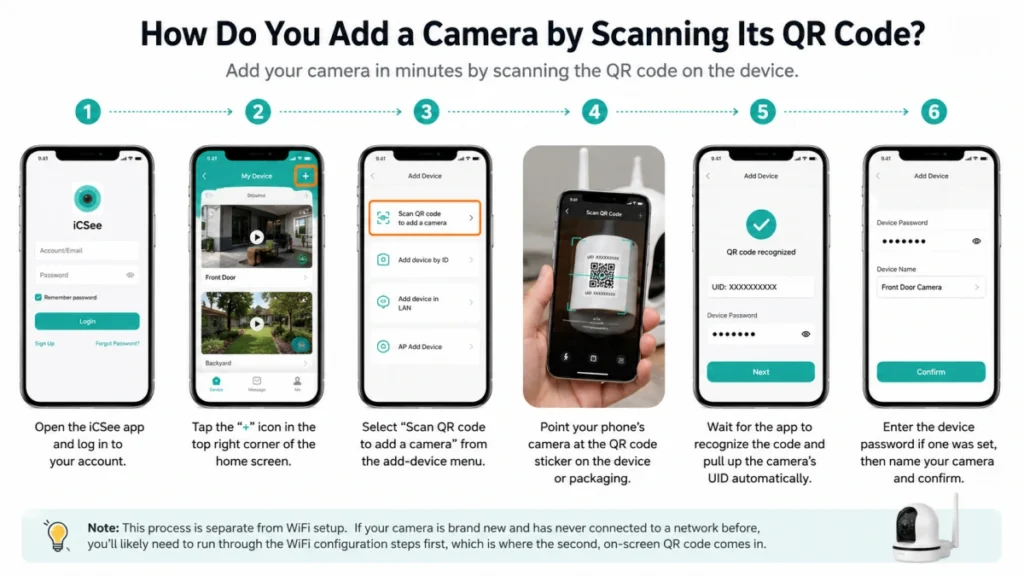
Scanning the device QR code to add a new camera takes about a minute if the code is in good shape. Here’s the full sequence:
- Open the iCSee app and log in to your account.
- Tap the “+” icon in the top right corner of the home screen.
- Select “Scan QR code to add a camera” from the add-device menu.
- Point your phone’s camera at the QR code sticker on the device or packaging.
- Wait for the app to recognize the code and pull up the camera’s UID automatically.
- Enter the device password if one was set, then name your camera and confirm.
This process is separate from WiFi setup — if your camera is brand new and has never connected to a network before, you’ll likely need to run through the WiFi configuration steps first, which is where the second, on-screen QR code comes in.
Why Does the Camera Scan a Code on Your Phone Screen?
This step confuses more people than any other part of setup, mostly because it reverses the direction everyone expects. Instead of you scanning something, the camera scans your phone.
During WiFi setup, once you enter your network name and password into the app, the iCSee app generates a fresh QR code and displays it on your screen. You then hold the phone 4 to 8 inches from the camera lens, keeping it steady, until the camera gives an audio cue like “connecting, please wait.” That sound confirms the camera has successfully read the code and is now attempting to join your network.
This method exists because most iCSee cameras don’t have a keyboard or touchscreen of their own — a screen-to-lens QR handoff is a simple workaround so the camera can receive WiFi credentials without you typing anything directly into the device. It only works on 2.4GHz networks, so if your router broadcasts a single combined SSID for both 2.4GHz and 5GHz, you may need to temporarily split them or connect your phone to the 2.4GHz band before generating the code.
If you’ve hit connection trouble at this stage before, our full walkthrough for setting up an iCSee camera the first time covers band-splitting and router settings in more detail.
What Should You Do If the iCSee QR Code Won’t Scan?
Most scan failures come down to distance, lighting, or a code that’s simply too small or too damaged to read. Working through these causes in order usually finds the problem fast.
| Symptom | Likely Cause | Fix |
|---|---|---|
| Camera makes no sound at all | Phone held too close or too far from the lens | Adjust to roughly 4–8 inches and hold steady for a few seconds |
| App won’t recognize the sticker code | Glare, low light, or a scratched/faded sticker | Move to better lighting, wipe the sticker, or zoom in slightly |
| Camera says “connecting” then fails | WiFi is 5GHz-only, or password was mistyped | Switch to a 2.4GHz network and re-enter credentials carefully |
| Error about too many login attempts | Repeated failed connection tries in a short window | Wait 10–15 minutes, then retry the WiFi setup from scratch |
| QR code sticker is torn or unreadable | Physical damage to the code itself | Use the app’s “About Device” screen to pull up the UID manually |
Because the camera’s lens is doing the actual reading during WiFi setup, a smudge or dust on that lens can be just as much of a problem as anything on your phone screen. A quick wipe with a soft cloth before you start often clears up scans that were failing for no obvious reason.
If none of this resolves things and the camera still shows offline afterward, it’s worth ruling out a broader connectivity issue rather than the QR step itself — this breakdown of why iCSee cameras drop offline walks through router and firmware checks separately from the QR pairing process.
Lost or Damaged Your iCSee Camera QR Code? You’re Not Stuck
Here’s something most setup tutorials never mention: the QR code sticker is a convenience, not a requirement. Every iCSee camera also has a UID, and that UID alone is enough to add the device to your account.
You can find the UID printed as text right next to (or below) the QR code on the sticker — it’s usually a string of letters and numbers. If the sticker is torn but the text is still legible, type the UID manually into the “Add Device” screen instead of scanning. If both the code and the text are gone entirely, check whether the camera was ever added to another phone or account; logging into that account and viewing the device’s “About” page will display the UID again without needing the original sticker at all.
As a last resort, a factory reset combined with the AP direct-connection mode (short-pressing the reset button for 2–5 seconds) lets you add the camera fresh, without a QR code, by connecting your phone directly to a temporary hotspot the camera broadcasts. Since a factory reset also clears the device password, it’s worth bookmarking our guide to the iCSee camera reset button and factory reset steps before you go this route, so you’re not locked out again after re-adding it.
Sharing a Camera With Family? The iCSee Camera QR Code Works Differently Here
Camera sharing uses a QR code too, but it’s a third kind entirely — and it has a built-in expiration date that catches people off guard. When you tap “Share” on a camera you’ve already added, the app generates a fresh QR code specifically for granting access to another account.
That shared QR code stays valid for roughly 30 minutes. If the person you’re sharing with doesn’t scan it within that window, it expires automatically and you’ll need to generate a new one. This is different from the device QR code, which never expires since it’s printed and tied to the hardware, and different from the WiFi setup code, which is only used once during initial connection. Knowing which of the three codes you’re dealing with — device, WiFi, or share — saves a lot of back-and-forth when something doesn’t scan as expected.
Frequently Asked Questions About iCSee Camera QR Code
Can I scan the iCSee QR code with my regular phone camera instead of the app?
No, not for adding or configuring a camera. The device QR code and WiFi setup code are both designed to be read inside the iCSee app itself, since the app needs to process the embedded UID or credentials. Scanning with your default camera app might open a link or show plain text, but it won’t add the device or complete setup.
Does the QR code expire on a brand new camera?
The printed device QR code on the camera body or box does not expire — it’s tied permanently to that unit’s UID. The only iCSee QR codes that expire are the ones generated inside the app for WiFi setup (single use) and for sharing access with another account (valid for about 30 minutes).
What happens if I scan the wrong QR code by accident?
Usually nothing harmful happens — the app will either show an error saying the code isn’t recognized, or it will fail to match a device and prompt you to try again. You won’t damage the camera or your account by scanning an unrelated code, so it’s safe to experiment if you’re not sure which code you’re looking at.
Can I add an iCSee camera without a QR code at all?
Yes. You can manually type in the device’s UID under “Add Device,” or use the AP direct-connection mode after a factory reset, which connects your phone straight to the camera’s temporary hotspot. Both methods skip the QR scan entirely.
Why does my camera keep saying “connecting” after it scans the QR code but never finishes?
This almost always points to a WiFi mismatch — most often the phone was connected to a 5GHz network when the code was generated, which the camera can’t join. Double-check that your phone is on the 2.4GHz band, re-enter your WiFi password carefully, and generate a new code rather than reusing the one that already failed. If it still hangs after a couple of clean attempts, move the camera and router closer together for the initial setup; you can always relocate it once it’s confirmed online.
Do all iCSee-compatible cameras use the same QR code system?
Mostly, yes. Many camera brands sold under different names actually run the same iCSee (or the closely related XMEYE) firmware underneath, so the device QR code, WiFi setup code, and share code all behave the same way regardless of the logo on the box. Minor interface differences show up between app versions, but the core scanning steps described here apply across the vast majority of iCSee-based cameras.
Is it safe to share my iCSee camera’s QR code with someone outside my household?
Sharing the code grants live-view access to your camera feed, so only share it with people you’d trust to see that footage. Since the share code expires after about 30 minutes and you control what permissions are attached to it, you can limit exposure by generating a fresh code only when you’re ready for the other person to scan it immediately, rather than sending it ahead of time.
For general QR-scanning tips on your phone itself, Apple’s official guide to scanning QR codes on iPhone and iPad is a useful reference if the issue turns out to be your device rather than the camera.