


You go to check on the dog, the front porch, or the shop floor, and iCSee just sits there rejecting whatever password you type. Maybe autofill saved something that no longer works. Maybe a family member changed it “for security” and never told anyone. Either way, you’re locked out of your own camera, and every guide you find online seems to assume you already know which password you forgot.
That last part matters more than most articles admit. iCSee actually has two separate passwords, and mixing them up is the reason so many resets fail on the first try. Below, we’ll sort out which one you’re dealing with, walk through all three recovery paths, and cover what to do when the standard “forgot password” button doesn’t work because you no longer control the phone number or email tied to the account.
iCSee Says Wrong Password, But Which One Does It Mean?
An iCSee login failure comes from one of two separate credentials, not one. The iCSee account password is what unlocks the mobile app itself, tied to the email or phone number you registered with. The device password is different: it’s a security code stored on the camera or NVR itself, set the first time you added that specific device to the app. You can forget one and still have the other working fine, which is exactly why so many people reset the wrong thing and wonder why nothing changed.
| Password type | Where it lives | What it unlocks | How you reset it |
|---|---|---|---|
| iCSee account password | iCSee’s cloud servers | Your login to the app on any phone | Email/SMS verification code |
| Camera device password | The physical camera or NVR | Access to that one specific device | Physical reset button on the hardware |
If you can open the app fine but a specific camera says “wrong password” or won’t let you view live footage, that’s the device credential. If you can’t even get past the login screen, that’s the account credential. The rest of this guide splits along that same line.
Locked Out of the iCSee App Login? Here’s the Recovery Flow
Resetting your iCSee account password takes about two minutes if you still have access to the email or phone number on file. Here’s the exact process, based on iCSee’s own in-app flow:
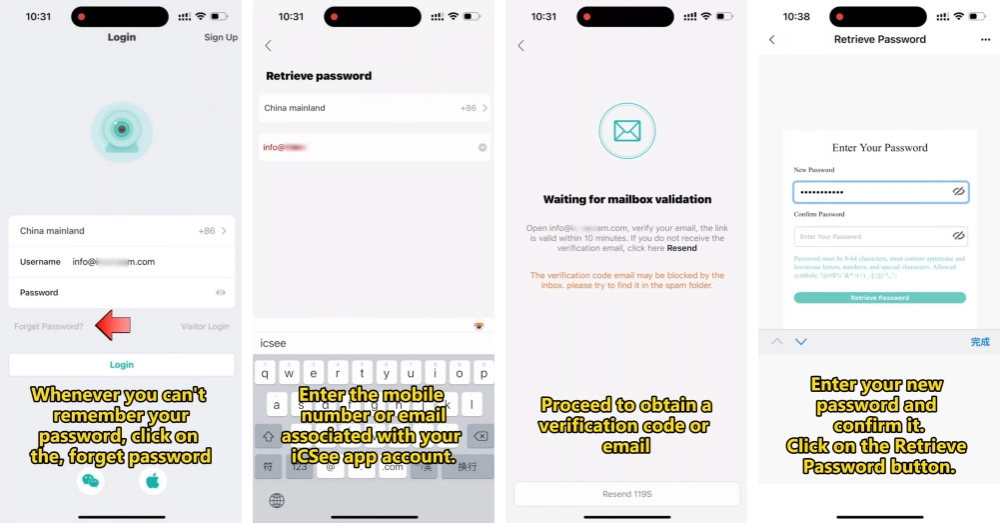
- Open the iCSee app, go to the login screen, and tap “Forget Password?” below the sign-in fields.
- Agree to the service agreement and privacy policy prompt that pops up next.
- Pick your country or region code, then enter the mobile number or email address the account was originally registered with, and tap “Next.”
- iCSee sends either a text code or an email titled something like “We have received a request regarding your password.” Open it quickly, since both the code and the reset link expire after about 10 minutes.
- For email, tap the green “Retrieve Password” button inside the message. If the button won’t open on your phone, copy the backup link printed below it into your browser instead. For SMS, just enter the code in the app.
- Set a new password between 8 and 64 characters that mixes an uppercase letter, a lowercase letter, a number, and a special character, then confirm it and submit.
- Once you see the “Password recovery successful” confirmation, head back to the app and log in with your registered email or phone number and the new password.
That flow works the same on both the Android and iOS builds of iCSee. Two timing details trip people up: the resend button stays grayed out for a 120-second cooldown after each send, and the reset link itself goes stale after roughly 10 minutes, so if you get distracted mid-process, just request a new one rather than clicking an old email. It’s also worth checking spam or promotions folders, especially on Gmail and Outlook, before assuming the email never arrived.
Once you’re back in, it’s worth double-checking each camera is still showing online rather than stuck in a disconnected state from the login issue.
No Access to the Old Email or Phone Number? Here’s the Real Fix
Account recovery breaks down completely when the registered email or number is no longer yours, and this is the gap most iCSee guides skip entirely. It happens more than you’d think: cameras bought secondhand, systems installed by a contractor who used their own email, or an old phone number that got recycled to someone else years ago. In every one of these cases, the “Forget Password?” button is a dead end, because there’s no verification code coming to anywhere you control.
When that’s your situation, stop trying to recover the old account and go straight to the hardware. Every iCSee-compatible camera has a local device password that’s completely separate from the cloud account, and a physical factory reset clears it without needing any email verification at all. Once the camera is reset, you register it under a brand-new account using an email and number you actually control right now. If the camera was previously tied to someone else’s login, you may also need to go through the steps for unbinding it from the old account before it will accept a fresh registration.
This is genuinely the cleanest path if you’ve inherited a camera, bought one used, or simply lost access to years-old contact details. It costs you the old cloud recordings tied to that account, but it gets you back to full control of the hardware in under ten minutes.
Forgot the Camera’s Device Password? Time for a Factory Reset
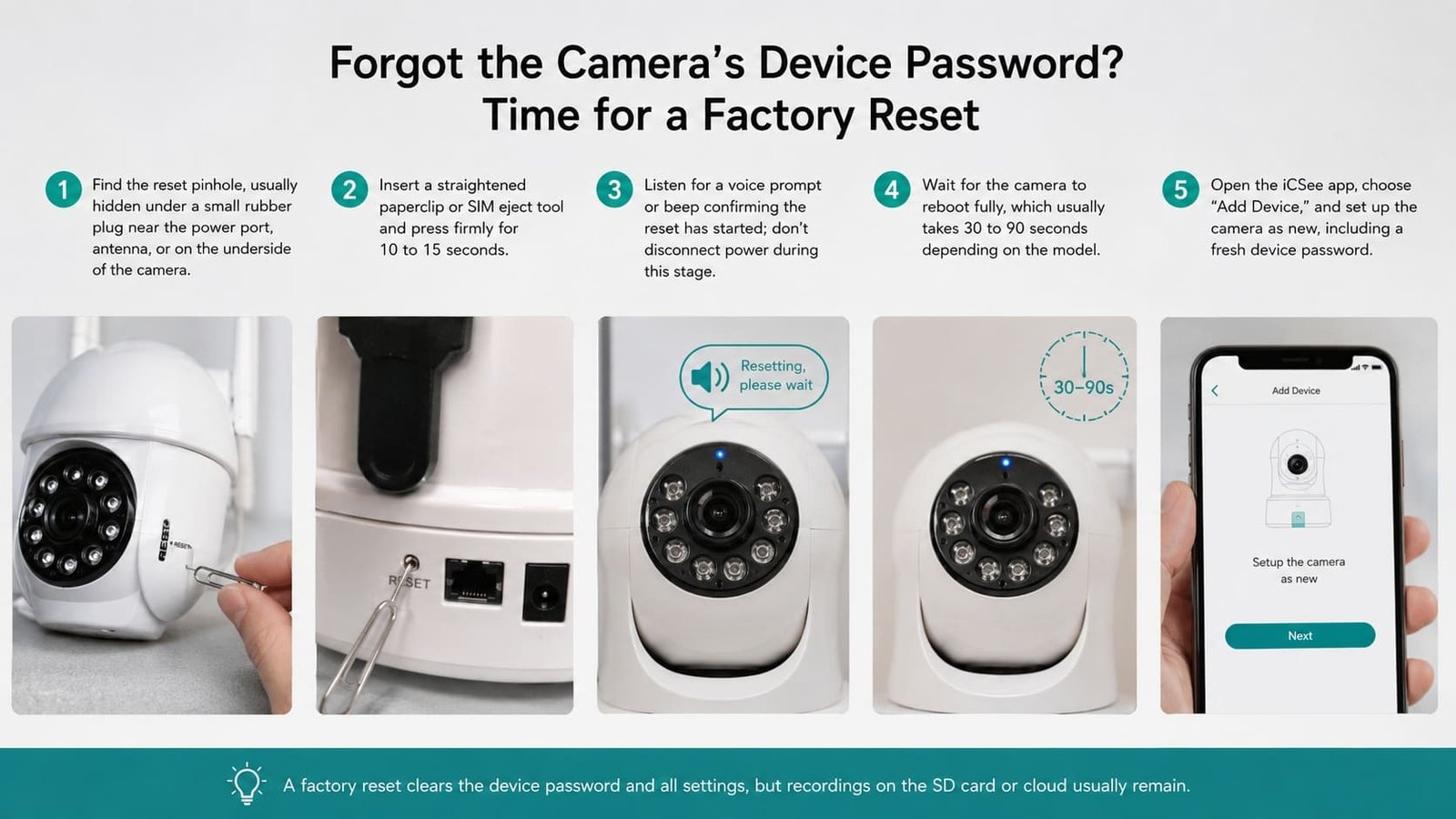
A factory reset clears the device password and every other custom setting on the camera, forcing it back to its out-of-box state so you can set everything up fresh. Here’s how to do it on nearly every iCSee-branded or iCSee-compatible camera:
- Find the reset pinhole, usually hidden under a small rubber or silicone plug near the power port, antenna, or on the underside of the camera.
- Insert a straightened paperclip or SIM eject tool and press firmly for 10 to 15 seconds.
- Listen for a voice prompt or beep confirming the reset has started; don’t disconnect power during this stage.
- Wait for the camera to reboot fully, which usually takes 30 to 90 seconds depending on the model.
- Open the iCSee app, choose “Add Device,” and set up the camera as new, including a fresh device password.
The exact hold time and prompt wording vary slightly by manufacturer since iCSee is used as a white-label app across dozens of OEM camera brands, but the process above covers the vast majority of models on the market. If you’re not sure exactly where the button sits on your specific unit, our guide to the recessed reset button has photos and placement notes for the most common housings. And because a factory reset wipes network settings too, you’ll be setting the camera up again from scratch, Wi-Fi credentials included.
One thing worth flagging before you reach for the paperclip: a factory reset erases local settings, but footage already saved to an SD card or cloud plan usually survives, since that storage lives separately from the device’s configuration memory. Don’t expect the reset itself to delete your recording history, though it’s smart to back up anything critical first, just in case.
NVR and DVR setups add one more wrinkle worth knowing about. If your iCSee camera runs through a recorder rather than connecting directly to Wi-Fi, resetting an individual channel’s password won’t touch the recorder’s own admin login, and vice versa. Those are two separate credentials stacked on top of each other. If you manage a multi-camera system and only one channel is giving you trouble, reset that channel alone rather than hitting the master reset on the whole recorder, or you’ll be reconfiguring every camera on the system instead of just the one that’s locked out.
iCSee Camera Password Reset Not Working? Here’s Why
Sometimes you follow every step correctly and the reset still doesn’t take. A handful of specific causes explain almost all of these failures.
| Problem | Likely cause | What to try |
|---|---|---|
| Verification code or email never arrives | Server delay, spam filter, or wrong country/region code selected | Check spam first, then confirm the country code matches your number |
| Resend button stays greyed out | Still inside the 120-second cooldown between sends | Wait for the timer to finish before tapping resend again |
| Link or code gets rejected | More than 10 minutes passed since it was issued | Request a fresh code or link instead of reusing the old one |
| New account password won’t submit | Doesn’t meet the 8–64 character mix requirement | Include an uppercase letter, a lowercase letter, a number, and a special character |
| “Too many attempts” lockout | Repeated failed login attempts triggered a cooldown | Wait 30–60 minutes before trying again |
| Camera won’t enter reset mode | Button held too briefly or wrong pinhole | Hold for a full 15 seconds; confirm you hear the prompt |
| New device password rejected after reset | Camera hasn’t fully rebooted yet | Wait for the “ready to configure” prompt before adding it |
| App still shows old device password | Cached device list on the phone | Remove the camera from the app fully, then re-add it |
If none of that resolves it, there’s a decent chance the issue isn’t the password reset at all but a deeper network or firmware problem. It’s worth ruling that out before assuming the reset process itself failed. A camera that stays grayed out right after a reset, for instance, is more often a Wi-Fi handshake issue than a password one, and treating it as a password problem just wastes another reset cycle.
Picking a New iCSee Camera Password You Won’t Lose Again
iCSee’s own reset form already forces the account password into a specific shape: 8 to 64 characters, with at least one uppercase letter, one lowercase letter, one number, and one special character. That covers the minimum bar, but a password only really helps if you can also remember it without writing it down. Federal guidance from the National Institute of Standards and Technology leans toward length over pure complexity these days, favoring longer, memorable passphrases over cryptic strings that people end up jotting on a sticky note anyway.[1] A middle ground works best here: a longer phrase that still satisfies iCSee’s character mix. A few habits that hold up over time:
- Use a passphrase of three or four unrelated words rather than a single word with numbers tacked on.
- Store it in a password manager instead of a note app, so autofill handles it going forward.
- Avoid reusing your email password for the camera account. If one gets breached, you don’t want both compromised together.
- Write down which email and phone number are tied to the account somewhere you’ll actually find later.
That last point solves the exact problem covered earlier in this guide. Take thirty seconds now to note your recovery details somewhere durable, and you’ll never end up locked out with no way back in. If you want a fuller picture of how iCSee handles your account data day to day, it’s worth a quick read once your access is sorted out.
Frequently Asked Questions About Resetting an iCSee Password
Can I reset my iCSee camera password without the app?
Not really. The account password reset requires the app (or iCSee’s web portal, where available) to receive and enter the verification code. The device password can technically be reset with just the physical button on the camera, no app needed for that step, but you’ll still need the app afterward to reconfigure the device and set a new one.
Does a factory reset delete my saved recordings?
No, not typically. Recordings stored on an SD card or in a cloud plan are kept separately from the camera’s configuration settings, so a factory reset wipes passwords, Wi-Fi credentials, and custom settings, but doesn’t touch footage already saved elsewhere. Local recording settings will need to be turned back on after setup, though.
What happens if I lose the QR code needed to re-add the camera?
You don’t actually need the original QR code to re-add a camera after a reset. Most models let you add the device through a local network scan instead, since the camera broadcasts on your Wi-Fi during setup mode. If your specific model insists on scanning its QR code, check the sticker on the camera housing itself, which usually has a printed backup UID.
Can someone else still access my camera after I reset it?
No. A factory reset clears the device password and unbinds it from any account it was previously tied to, which is exactly why it’s the recommended fix when a camera was set up by a previous owner or an old tenant. Once reset, nobody with the old login can view or control the camera anymore.
Will resetting the password affect motion detection or alert settings?
Only if you’re doing a full factory reset, not a simple password change. Changing just the account or device password through the normal recovery flow leaves motion zones, notification settings, and schedules untouched. A hardware factory reset, on the other hand, clears all of that along with the password, so you’ll want to redo motion detection and alert preferences once the camera is back online.