


You finally got the driveway camera set up, and now everyone wants in — your partner wants alerts, your parents want to check on the dog, your adult kid wants to see who’s at the door when you’re not home. So you hand over your iCSee login… and a week later nobody can agree on who turned off the motion alerts, someone accidentally deleted three days of footage, and you’re not even sure who still has access. Sharing a camera sounds like a five-minute task. Doing it in a way that doesn’t come back to bite you later is a different question.
By the end of this guide you’ll know exactly which sharing method keeps you in control, why a shared camera sometimes freezes when three people watch it at once, and what actually happens to everyone’s access after a firmware update or factory reset — three things almost nobody realizes until they’ve already hit the problem.
iCSee Camera Sharing: Account Sharing vs. Device Sharing
The iCSee app is used by dozens of budget camera and NVR brands sold on Amazon and AliExpress under different names — you may recognize similar apps like iCSee Pro, CamHi, XMEye, or Yoosee. An iCSee camera doesn’t run its own login page. Instead, it connects through a P2P cloud relay using a unique device ID, which is why the app can reach the camera even without opening any ports on your router.
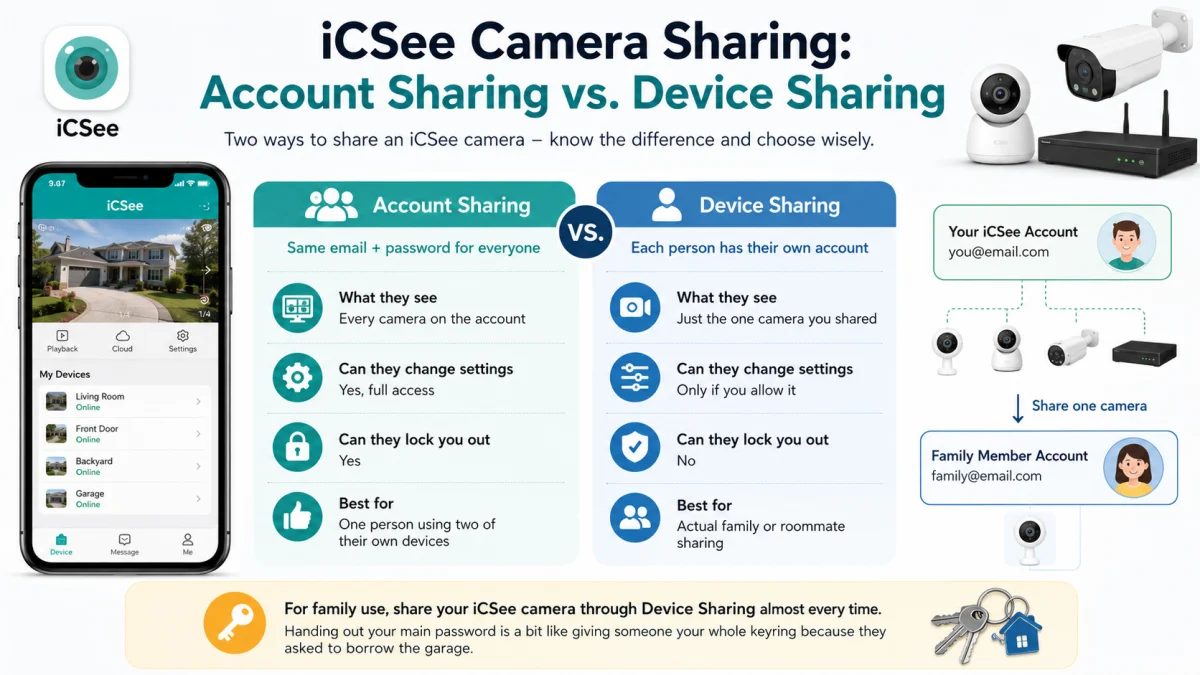
Because of this setup, there are two ways to share an iCSee camera, and mixing them up is the most common mistake:
| Account Sharing | Device Sharing | |
|---|---|---|
| Who logs in | Same email + password for everyone | Each person has their own account |
| What they see | Every camera on the account | Just the one camera you shared |
| Can they change settings | Yes, full access | Only if you allow it |
| Can they lock you out | Yes | No |
| Best for | One person using two of their own devices | Actual family or roommate sharing |
For family use, share your iCSee camera through Device Sharing almost every time. Handing out your main password is a bit like giving someone your whole keyring because they asked to borrow the garage.
Step-by-Step: How to Share an iCSee Camera
- Have your family member create their own iCSee account first. This step gets skipped a lot, and it’s the reason the QR code “doesn’t work” for so many people.
- Open iCSee on your phone (the owner’s device) and go to the device list.
- Tap the camera you want to share, then open Device Settings.
- Tap Share Device (some versions call it Device Sharing or Cloud Sharing). A QR code appears. Depending on the model and firmware version, this code stays valid anywhere from 5 minutes to 30 minutes — don’t assume it’s the shorter window and rush.
- If your camera model allows it, choose the permission level: view-only or full control.
- On your family member’s phone, open iCSee, tap Add Device, then choose Scan to Add or Shared Device, and scan the code before it expires.
- Some models will prompt the new viewer for the camera’s device password after the scan. This trips a lot of people up, because on other models the QR code alone is enough and no password screen ever appears. If a password field shows up, it’s the same password you set when you first installed the camera — not your iCSee account password — so send it to your family member through a private channel rather than a group chat.
- Approve the request on your own phone. Many versions ask the owner to confirm before the shared account actually activates.
If the code times out, just generate a new one. Don’t try to reuse an old screenshot — that’s a common cause of “invalid QR code” errors.
What a Shared iCSee Camera User Can (and Can’t) Do
Family members often assume a shared iCSee account works exactly like the owner’s account. It usually doesn’t.
| Feature | Owner | Shared User |
|---|---|---|
| Watch live video | Yes | Yes |
| Pan/tilt/zoom | Yes | Depends on the permission you set |
| Two-way talk | Yes | Often limited on cheaper models |
| Playback of saved recordings | Yes | Sometimes live view only |
| Cloud storage playback | Yes | Only if the owner’s cloud plan allows shared access — it isn’t automatic |
| Motion alerts | Yes | Yes, but each person turns it on separately |
| Add more shared users | Yes | No |
| Change camera settings | Yes | No |
| Delete recordings / format SD card | Yes | No |
| Remove the device | Yes | No |
Three things trip people up here. First, notifications don’t carry over automatically — each shared account has to turn on push alerts themselves. If your family member says “I never get alerts,” check that setting before you assume the camera is broken. Second, if you want an adult child to fully manage the camera while you travel, confirm their permission level before you leave — the default share setting is often more restrictive than people expect. Third, cloud storage on iCSee is a paid subscription tied to the owner’s account; a shared user generally can’t scrub back through cloud recordings just because they can view the camera live, even though the app doesn’t make that distinction obvious.
How Many People Can Watch an iCSee Camera at Once?
This is the part most guides skip, but it’s the part that actually causes headaches. The limit usually isn’t about how many people you’ve shared the iCSee camera with — it’s your home’s upload speed. Every remote viewer pulls their own separate video stream through the cloud, not one shared broadcast.
Here’s how to estimate it. A typical 1080p iCSee camera stream runs around 2 Mbps. Add roughly 15–20% for encryption and cloud overhead, and each viewer really uses about 2.4 Mbps of your upload bandwidth.
| Your upload speed | Rough max viewers |
|---|---|
| 20 Mbps | About 8 |
| 10 Mbps | About 4 |
| 6 Mbps | About 2–3 |
So if four family members try to check the same camera at once on a typical cable plan (many U.S. plans cap upload around 5–10 Mbps), someone’s stream is probably going to stutter. Before blaming the app, run a quick speed test on the router where the camera lives. Switching the camera to its lower-resolution sub-stream (often 512–768 kbps) roughly triples how many people can watch smoothly.
Sharing an iCSee Camera on PC or Mac (Not Just Phones)
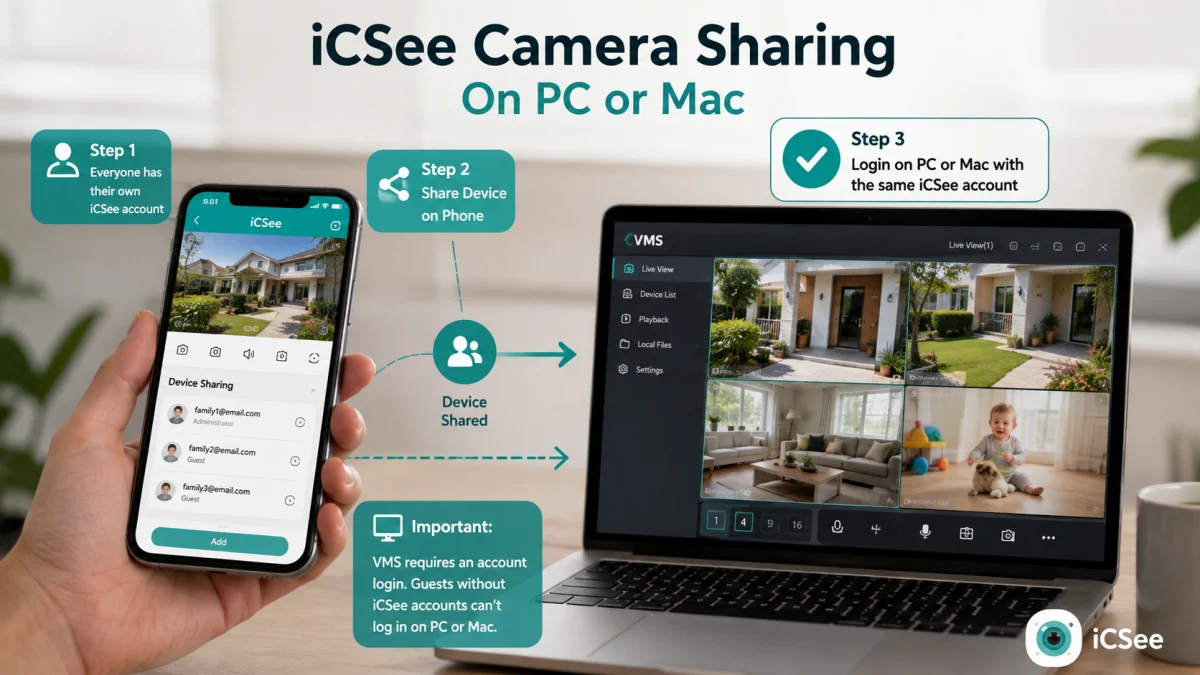
Most guides only cover phone-to-phone sharing, but a fair number of iCSee users also want to check the camera from a Windows or Mac computer — and this is where sharing behaves differently. The desktop client (usually called VMS or CMS, depending on the camera brand) doesn’t use the same QR-code invite flow as the mobile app. Instead, whoever installs the desktop software logs in with their own iCSee account credentials directly — the same shared account you already set up on their phone via Device Sharing will show the same shared camera on desktop, no separate re-sharing step needed. The catch: if your family member only exists as a “shared device” guest and never created a full iCSee account, they won’t be able to log into the desktop app at all, since VMS requires an account login rather than a scanned invite. This is one more reason to insist on step 1 above — everyone needs their own real account, not just a scanned QR code.
Which iCSee Camera Sharing Method Should You Use?
Device Sharing wins for nearly every family setup. It keeps everyone’s access separate and revocable — a teenager can’t quietly delete the backyard camera’s footage, and a co-parent can’t turn off your alerts without you knowing.
Account sharing still makes sense in one narrow case: a single person using their own login across two of their own devices, like a phone and a tablet. That’s not really “sharing” — it’s just one person, one account, two screens.
Common iCSee Camera Sharing Problems and Quick Fixes
| Problem | What’s usually going on |
|---|---|
| QR code says invalid or expired | Codes expire in minutes (sometimes up to 30, depending on the model). Generate a fresh one instead of reusing an old screenshot. |
| Shared user is asked for a device password unexpectedly | Normal on some models. It’s the camera’s own device password, set during initial installation — not the iCSee account password. |
| Shared user sees the device but it shows “offline” | Check if the owner can view it live too. If not, it’s the camera’s internet, not the sharing setup. Try restarting the router near the camera. |
| Sharing vanished after a firmware update | Some updates reset the camera’s cloud registration, which quietly drops existing shares. Just re-share the device rather than trying to fix the old link. |
| Shared user’s app looks similar but sharing fails | There are several similarly named apps (iCSee, iCSee Pro, XMEye, CamHi). Make sure both people are using the exact same app. |
| PTZ (pan/tilt/zoom) won’t respond for the shared user | Only one account can hold camera control at a time on many models. If someone else is actively moving the camera, control locks out temporarily. |
| Can’t find the QR code or serial number to troubleshoot | Go to the live view, tap the settings icon, then About Device— the QR code and serial number live there, not on the camera’s physical packaging. |
Removing Someone’s Access to Your iCSee Camera
People move out. Contracts end. Sometimes you just want to trim the list. Go back to Device Settings on the owner’s account, open the shared-users list, and remove the account you want gone. This cuts off their access right away without touching anyone else’s connection or resetting the iCSee camera.
It’s worth treating this list like a spare house key — check it every few months, especially for cameras pointed at your front door or driveway.
Before You Share Your iCSee Camera: Quick Checklist
- Family member has downloaded the correct app and made their own account
- You’ve decided whether they need control access or just viewing
- You’ve checked your upload speed if more than two or three people will watch at once
- Push notifications are turned on inside their app (this doesn’t happen automatically)
- You know whether their scan will ask for the camera’s device password, so you’re not caught off guard
- You’ve reviewed the shared-user list in the last few months
iCSee Camera Sharing: FAQ
Can I share an iCSee camera without giving out my password?
Yes. That’s the whole reason Share Device exists. It sends a QR-code invite tied to the other person’s own account, so your login never gets typed into another phone. On some models the new viewer will still be asked for the camera’s own device password (not your account password) — it’s a different, separate credential. Either way, it’s safer than texting your account password, since a shared account password gives access to every camera on your account, not just one.
Does my family member need Wi-Fi to watch the camera?
No. Any internet connection works — Wi-Fi or mobile data — because the video routes through the cloud relay, not your home network directly.
Does sharing work between iPhone and Android?
Yes, as long as both people are using the same app and a reasonably current version.
Can a shared user save or download video clips?
It depends on the camera model and the permission level. Some let shared users save live clips to their own phone, while saved SD-card or cloud footage is more often owner-only.
Can a shared user watch from a computer, not just a phone?
Yes, if they’ve created a full iCSee account (not just accepted a QR invite) and log into the desktop VMS/CMS software with those same credentials. A guest who only scanned a QR code without ever registering an account generally can’t log into the desktop client.
What happens to sharing after a factory reset?
It clears everything — the owner’s registration and every shared user. After a reset, you’ll need to add the camera back to your account, then re-share it with each family member again.