


If you are asking “is iCSee safe,” the practical answer is: iCSee can be safe enough for basic home camera viewing if you configure it carefully, but it should not be treated as private by default. The risk is not only the app itself. It also depends on the camera manufacturer, firmware quality, cloud connection method, password hygiene, network setup, and how much access you give the app. This matters because iCSee is commonly used with low-cost Wi-Fi security cameras, baby monitors, door cameras, and NVR systems that may stream video through remote cloud services. After reading, you will know what the real privacy risks are, which settings matter, and when to choose a different setup.
The Main Privacy Risks Behind iCSee
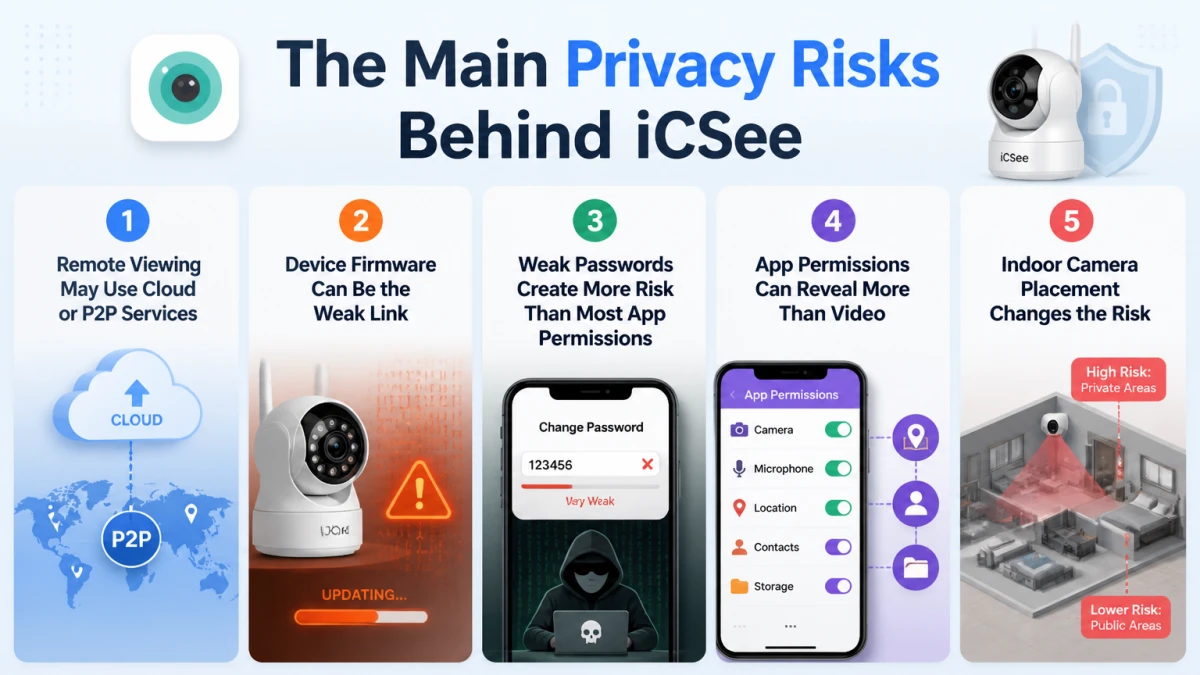
The biggest privacy risks are not always the ones users expect. Many people worry first about the app icon on their phone. In practice, the camera, account, cloud path, and router settings can be more important.
1. Remote Viewing May Use Cloud or P2P Services
Many iCSee-compatible cameras support remote viewing through cloud-assisted access. This allows you to see the live feed when you are away from home without setting up a VPN.
That convenience has a cost. With cloud-assisted camera access, the app and camera may communicate with vendor servers for login, device discovery, notifications, firmware checks, or video relay. The exact behavior can vary by camera model and firmware version, and ordinary users may not receive a clear network diagram.
If your main concern is whether is iCSee safe for indoor spaces, this is the first thing to examine. A driveway camera has a different privacy profile than a nursery camera. A camera pointed at a public-facing entrance captures less sensitive material than a camera inside a bedroom, office, or child’s room.
Run a simple rule: if the camera would feel invasive if viewed by the wrong person, configure it more strictly or do not use cloud remote viewing for that location.
2. Device Firmware Can Be the Weak Link
Firmware is the low-level software that runs on the camera itself. It controls the camera’s network behavior, login system, video encoding, motion detection, and update process. Even if the phone app is legitimate, outdated firmware can leave the camera exposed.
This is where iCSee becomes difficult to assess as a single product. A branded security camera company normally controls the hardware, firmware, app, cloud service, update schedule, documentation, and support. The iCSee ecosystem is more fragmented. Cameras sold by different resellers may depend on different firmware builds and may not receive updates at the same pace.
Xiongmai-related devices have appeared in past public security discussions around IoT camera weaknesses, including the 2016 Mirai botnet period, when many internet-connected devices were compromised through weak or default credentials. That historical context does not prove every current iCSee-compatible camera is unsafe. It does show why default passwords, firmware age, and update support should not be ignored.
Short version: the app is only one layer.
3. Weak Passwords Create More Risk Than Most App Permissions
Many camera compromises begin with poor credentials. People reuse an email password, leave a device password unchanged, or create something easy to guess because typing it into a small app screen is annoying.
Do not do that.
Use a unique password for the iCSee account and a separate strong password for the camera or NVR if the device supports local credentials. A password manager makes this easier. The practical goal is to prevent one leaked shopping-site password from becoming the key to your camera feed.
If two-factor authentication is available for your account or related service, turn it on. If it is not available, compensate by using stronger network controls and reducing remote exposure.
4. App Permissions Can Reveal More Than Video
On Android and iOS, a camera app may request permissions for the camera, microphone, local network, notifications, photos, location, or storage. Some permissions are functional. For example, camera access may be needed to scan a QR code during setup, and local network access may be needed to discover a device on Wi-Fi.
Other permissions deserve scrutiny.
Location access may be used during Wi-Fi setup on Android because scanning nearby Wi-Fi networks can be tied to location permissions. Storage access may be used for saving snapshots or clips. Microphone access may be needed for two-way audio. These permissions can be legitimate, but they should not remain broader than necessary.
Open your phone’s permission manager after setup. Remove access that is not needed for daily viewing. Keep notifications only if you need motion alerts.
5. Indoor Camera Placement Changes the Risk
The safest camera is not only the one with the best encryption. It is also the one that captures the least sensitive footage.
Many users install cameras too quickly. They point the device toward a living room, kitchen, crib, desk, or hallway without thinking about what the camera sees during normal life. If the account is compromised later, the privacy impact is much worse than a camera aimed at a gate.
For iCSee-compatible cameras, be conservative with indoor placement. Avoid bedrooms and bathrooms entirely. For nurseries, consider whether you really need internet-based remote viewing or whether a local-only baby monitor is more appropriate.
What Security Features Matter Most?
The safety of iCSee depends heavily on specific controls. Some are inside the app. Some are inside the camera. Some live on your router.
Encryption is one of the most misunderstood terms in consumer cameras. A product page may say that video is encrypted, but users need to know what is encrypted, when it is encrypted, and who controls the keys. Encryption between the app and server is different from end-to-end encryption where only your device can decrypt video.
Do not assume all encryption claims mean the same thing.
End-to-end encryption means content is encrypted so that only the intended endpoints can read it. In consumer camera systems, this is not always clearly documented. If a vendor does not explain its encryption model, treat the claim cautiously.
ONVIF, short for Open Network Video Interface Forum, is a standard that helps IP cameras and recorders communicate across brands. If a camera supports ONVIF, you may be able to connect it to third-party video management software or an NVR instead of relying only on a vendor app.
RTSP, short for Real Time Streaming Protocol, is a streaming protocol that many IP cameras use for local video feeds. RTSP can be useful because it allows local viewing or recording through compatible software, but it must be protected carefully. Exposed RTSP streams on the public internet are a major risk.
NVR, short for Network Video Recorder, is a device or software system that records IP camera footage over a network. A local NVR can reduce dependence on cloud storage, but it still needs strong passwords, updates, and restricted remote access.
Here is how the major controls compare in real use:
| Control | Why It Matters | What to Check |
|---|---|---|
| Strong unique password | Prevents credential reuse attacks | Use a password manager and avoid reused passwords |
| Firmware updates | Fixes device-level flaws | Check update options in the app and seller documentation |
| Local network access | Limits exposure outside the home | Use router controls, VLANs, or guest networks |
| Cloud remote viewing | Adds convenience but increases dependency | Disable it if you only view cameras at home |
| ONVIF or RTSP support | Allows alternatives to the default app | Keep local streams off the public internet |
| App permissions | Limits phone-side data access | Remove location, microphone, or storage access if not needed |
| Router security | Protects all connected devices | Update router firmware and disable UPnP if unnecessary |
The most practical security improvement is not one setting. It is reducing the number of paths into the camera.
How to Make iCSee Safer Before You Use It?
If you already own an iCSee-compatible camera, treat setup as a security task, not just a pairing process. The first 20 minutes matter.
- Buy from a traceable seller. Choose a product with a real model number, firmware information, support page, and return policy. Avoid listings that use vague brand names and recycled product photos.
- Reset the camera before configuration. If the device is second-hand or previously opened, perform a factory reset. Start clean.
- Create a unique account password. Do not reuse your email, banking, marketplace, or social media password. Use at least 14 characters if the app accepts it.
- Change the device password. Some systems have both an app account password and a camera admin password. Change both where possible.
- Update firmware immediately. Open the device settings and check for a firmware update before mounting the camera permanently. Repeat this check every few months.
- Limit app permissions after setup. On iPhone, go to Settings, find iCSee, and review access. On Android, go to Settings, Apps, iCSee, Permissions. Turn off what you do not use.
- Disable UPnP on your router if you do not need it. UPnP, or Universal Plug and Play, can let devices request router port openings automatically. It is convenient, but it can create exposure you did not intend.
- Do not manually forward camera ports. If you need remote viewing, a VPN is safer than opening camera services directly to the internet.
- Put cameras on a guest network or IoT VLAN. If your router supports network separation, use it. This limits what a compromised camera can reach. If tightening these settings later causes connection drops, our guide on why an iCSee camera goes offline covers the common causes and fixes.
- Review motion clips and cloud settings. Turn off cloud recording if you do not need it. If you use cloud storage, understand the retention period and deletion controls.
Use this checklist before asking is iCSee safe for a sensitive location. The answer changes dramatically after these settings are handled.
A Concrete Setup Scenario: Safer Use for a Front Door Camera
Imagine you bought a 1080p Wi-Fi camera from an online marketplace, and the manual tells you to install iCSee. You want to monitor a front door, receive motion alerts, and occasionally check the live feed while away.
For a complete walkthrough of pairing steps, see our full iCSee setup guide. Here is a safer setup path:
- Plug in the camera next to your router at 7:00 p.m., before mounting it outside.
- Install iCSee from the official Apple App Store or Google Play listing, not from a random APK download page.
- Create a new account using a password manager, for example, a 16-character generated password.
- Add the camera by scanning the QR code while your phone is connected to your 2.4 GHz Wi-Fi network.
- Rename the camera “Front Door,” not “Home Address Door” or anything that identifies your location.
- Open device settings and run the firmware update check immediately.
- Turn off microphone recording if the camera is outside and you do not need audio.
- On your router, assign the camera to a guest Wi-Fi network named “Home-IoT,” with access to your main laptop network blocked if your router supports that option.
- Walk outside at 8:00 p.m. and confirm the view captures the porch and walkway, not the neighbor’s window.
- One week later, review motion alerts. Lower sensitivity if it records every passing car.
This scenario is not perfect security. It is practical risk reduction. A front door camera still sends some information outside your home, but it captures less sensitive footage than an indoor camera and can be locked down more sensibly.
The Data and Bandwidth Question People Forget
Security is not the only concern. Continuous camera access can create meaningful data traffic, especially when cloud viewing or cloud recording is enabled.
Here is a simple calculation using a common video setting, not a promise about every iCSee camera. Suppose a camera uploads video at 2.0 megabits per second when actively streaming or recording to the cloud.
Step-by-step:
- Bitrate: 2.0 megabits per second.
- Convert to megabytes: 2.0 ÷ 8 = 0.25 megabytes per second.
- Convert to one hour: 0.25 × 3,600 = 900 megabytes per hour.
- Convert to gigabytes: 900 ÷ 1,024 = 0.8789 gigabytes per hour.
- If it streams 8.0 hours per day: 0.8789 × 8.0 = 7.0312 gigabytes per day.
- Over 30.0 days: 7.0312 × 30.0 = 210.936 gigabytes per month.
Result: one camera streaming at 2.0 Mbps for 8.0 hours per day can use about 210.9 GB per month.
This matters for privacy as well as cost. A camera that constantly uploads video is not just using bandwidth. It is also moving more footage outside the home environment. Motion-only recording, local NVR storage, or lower bitrate settings can reduce both data use and exposure.
Is iCSee Safe Compared With Other Camera Apps?
The right comparison is not “iCSee versus every camera app.” The better comparison is between ecosystems.
A fully integrated brand, such as Google Nest, Ring, Arlo, or Reolink, may provide clearer documentation, more consistent firmware support, and better-known account security controls. Those systems can still have privacy trade-offs, especially where cloud video storage or law-enforcement request policies are involved. Brand recognition is not a guarantee of perfect privacy. If you want a side-by-side look at one such alternative, see our iCSee vs EZVIZ comparison.
iCSee sits in a different category. It is commonly used as a shared software platform for many lower-cost cameras. The price can be attractive, and some cameras offer flexible local features. But documentation, update reliability, seller support, and hardware quality may be uneven.
This is why is iCSee safe does not have a one-word answer for every buyer. The same app can be paired with a decent camera or with a poorly supported device that should not be trusted inside a home.
Use this decision filter:
- Choose iCSee-compatible hardware only if you are comfortable changing settings, checking firmware, and managing router security.
- Choose a more established camera ecosystem if you want clearer long-term support and simpler account protections.
- Choose a local-only NVR or self-hosted system if privacy matters more than easy remote viewing.
- Avoid unknown indoor cameras if the seller cannot provide a model number, firmware support path, or privacy policy.
When You Should Not Use iCSee
There are cases where the safer choice is not to harden iCSee, but to avoid it.
Do not use an iCSee-compatible camera in highly private indoor spaces. That includes bedrooms, bathrooms, therapy rooms, changing areas, and anywhere sensitive conversations happen. No convenience feature justifies that level of exposure for most households.
Be cautious in small businesses that handle regulated or confidential information. A camera pointed at a reception desk, treatment room, whiteboard, payment terminal, or employee workstation can capture more than security footage. It can capture personal data, customer records, or trade information.
Avoid using any low-cost cloud-connected camera where consent is unclear. For rentals, shared homes, offices, and caregiving environments, visible placement and written agreement matter. Privacy problems are not always technical. Sometimes they are legal and ethical.
Do not install APK files from unofficial websites. If you cannot get the app from the official App Store or Google Play, pause the installation and verify the source. Sideloaded apps can introduce risk unrelated to the camera platform itself.
Warning Signs Before Buying an iCSee-Compatible Camera
The safest decision may happen before the box arrives. Marketplace listings for low-cost cameras can look nearly identical, but a few clues reveal whether the seller is taking support seriously.
Look for these red flags:
- No clear brand, model number, or manufacturer information.
- Product photos that show different camera housings in the same listing.
- No mention of firmware updates or support contact.
- Claims such as “military-grade encryption” without technical explanation.
- Reviews saying the app stopped working after a few months.
- Instructions that require disabling router security features without explanation.
- A request to download an APK from a file-sharing link.
- No privacy policy linked from the seller or app listing.
Sort by most recent reviews before buying. Older positive reviews may refer to a different hardware batch or firmware version. Read the negative reviews first, especially comments about connection failures, password resets, strange logins, missing updates, or cloud subscription surprises.
A camera that is cheap but unsupported can become expensive in time, risk, and frustration.
What to Check in the iCSee Privacy Policy
A privacy policy is not thrilling reading, but it can answer questions that product pages avoid. When evaluating is iCSee safe from a data-handling perspective, read the policy attached to the app listing and check the effective date.
Pay attention to five areas:
- Data collected: Look for account identifiers, device identifiers, IP address, location data, Wi-Fi information, diagnostic logs, audio, video, snapshots, and push notification tokens.
- Purpose of processing: Setup, authentication, remote viewing, cloud storage, motion alerts, analytics, troubleshooting, and marketing are different uses.
- Sharing: Check whether data may be shared with cloud providers, affiliates, analytics providers, advertisers, or law enforcement where legally required.
- Storage and retention: A policy should explain how long account data, cloud recordings, logs, or support files may be retained.
- Deletion rights: Look for account deletion, cloud recording deletion, and regional privacy rights.
GDPR, or the General Data Protection Regulation, is the European Union’s major data protection law (see the official GDPR text for details). If a service offers GDPR-related rights to EU users, that may include access, correction, deletion, and objection rights. CCPA, or the California Consumer Privacy Act, provides privacy rights for many California residents. These laws do not automatically make a camera secure, but they give users more formal rights over personal data.
If the privacy policy is vague, outdated, or difficult to connect to the actual app developer, treat that as a risk signal rather than a paperwork issue.
Common Misunderstandings About iCSee Security
One common misunderstanding is that a camera is safe because it is on a private Wi-Fi network. Wi-Fi security helps, but cloud-connected cameras communicate outward. If the camera connects to vendor servers, the security boundary is no longer just your router.
Another misunderstanding is that deleting the app disables the camera. It may not. The camera can remain powered on, connected to Wi-Fi, and linked to an account. If you sell, return, or give away the device, remove it from the account and perform a factory reset.
A third mistake is treating motion detection as a privacy feature. Motion detection reduces recording volume, but it does not guarantee sensitive moments are never captured. False triggers happen. Reflections, pets, headlights, and shadows can start recordings.
Users also assume that local storage means no cloud use. A camera can record to a microSD card while still using cloud services for login, push notifications, or remote viewing. Check the network and cloud settings separately.
Finally, many people think a camera is secure if no one has hacked it yet. That is not a meaningful test. Silent exposure, weak credentials, and outdated firmware may leave no obvious warning until something goes wrong.
Practical Hardening Checklist
Use this checklist if you plan to keep using iCSee:
- Install iCSee only from the official app store for your device.
- Use a unique password for the iCSee account.
- Change the camera’s local admin password if the setting exists.
- Update camera firmware before permanent installation.
- Disable cloud storage if you do not need it.
- Disable audio recording if video is enough.
- Remove unused phone permissions after setup.
- Put cameras on a guest network or IoT network.
- Disable router UPnP unless another trusted device requires it.
- Never expose RTSP, ONVIF, HTTP, or admin ports directly to the internet.
- Use a VPN for remote access if you understand how to maintain it.
- Review account-linked devices and remove old cameras.
- Factory reset before selling, returning, or discarding the camera.
Check these settings every 3 to 6 months. Security camera systems are not static. App versions change, firmware changes, router settings change, and old passwords become less safe over time.
Better Alternatives for Privacy-Focused Users
If your priority is privacy rather than the lowest camera price, consider alternatives that reduce cloud dependence.
A local NVR system can record footage inside your home or business, especially when paired with cameras that support ONVIF. This approach can work well for users who are comfortable managing network settings. The trade-off is complexity. You become responsible for updates, remote access, backups, and secure configuration.
A reputable brand with documented security practices may be better for users who want easier operation. Look for clear two-factor authentication, firmware update history, end-of-life policies, encryption explanations, and export or deletion controls.
A non-internet baby monitor may be the better choice for a nursery. It may lack app access from work, but it also avoids exposing video through a cloud account. For many parents, that trade is worth it.
A wired PoE camera system can be more stable than Wi-Fi. PoE, or Power over Ethernet, sends power and data through one Ethernet cable. It reduces Wi-Fi reliability problems and can support cleaner network separation, although it requires cabling.
The best alternative is the one you can maintain. A sophisticated local system configured poorly can be less safe than a simple cloud camera with strong account protection.
FAQ
Is iCSee a virus or malware?
No, iCSee should not be assumed to be a virus if installed from the official Apple App Store or Google Play listing. The bigger concern is privacy and device security, not ordinary malware behavior. Avoid unofficial APK downloads, cloned app listings, and links from unknown sellers because those can introduce separate risks.
Can someone watch my iCSee camera without permission?
Yes, unauthorized viewing is possible if your account is compromised, the camera uses weak credentials, firmware has a vulnerability, or remote access is exposed incorrectly. Reduce the risk by using unique passwords, updating firmware, removing unused devices from your account, and keeping camera ports closed to the public internet.
Does iCSee work without cloud access?
Some iCSee-compatible cameras may support local viewing, RTSP, ONVIF, microSD recording, or NVR recording, but capabilities vary by camera model and firmware. Check the device settings and technical manual. If local-only operation is essential, confirm support before buying rather than assuming every iCSee camera can do it.
Should I use iCSee for a baby monitor?
Use caution. A baby monitor captures highly sensitive indoor footage, and many parents are better served by a local-only monitor or a camera system with strong documented security controls. If you use iCSee, disable unnecessary cloud features, use strong passwords, update firmware, and place the camera to capture only the crib area.
Why does iCSee ask for location permission?
On Android, location permission may be requested during Wi-Fi setup because scanning nearby Wi-Fi networks can be tied to location access. That does not mean the app always needs location for daily viewing. After setup, open your phone settings and disable location access if the app continues working without it.