
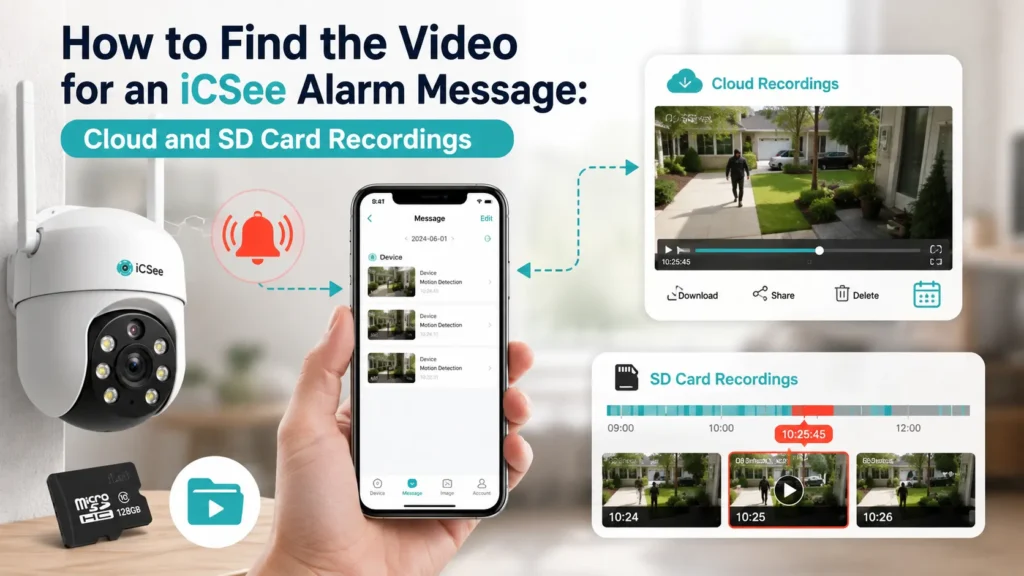


Your phone buzzes. It’s an iCSee alarm message, complete with a little snapshot of something moving near your front door or your driveway. You tap it, stare at the picture for a second, and then think: okay, but where’s the actual video? You want to see what happened before and after that frame, not just one blurry still. So you open the app, poke around for a minute, and end up more confused than when you started.
That mix-up between the alarm picture and the real recording trips up almost everyone who uses iCSee, and it gets worse once you realize the video might be sitting in two completely different places depending on how your camera is set up. By the end of this guide, you’ll know exactly where iCSee keeps the clip tied to any alarm message, how to jump straight to it instead of scrubbing through hours of footage, and what to do when the video simply isn’t there at all.
What’s the Difference Between an iCSee Alarm Message and the Actual Recording?
An alarm message and a recording are two separate things, even though they feel connected. The alarm message is just a push notification paired with a single snapshot image, captured the moment your camera detects motion or triggers a sensor. The recording, on the other hand, is the actual video clip, and it lives somewhere else entirely: either on the camera’s SD card (sometimes called a TF card, which is just an older name for the same microSD format) or up in the cloud, depending on your setup.
So when you tap a notification, you’re only looking at a frame grabbed from a longer clip. The video itself has to be pulled up separately, through the Playback screen, and that’s where a lot of people get stuck. Knowing this distinction matters because it changes what you’re actually troubleshooting. If the alarm picture loaded fine but the video won’t play, the problem usually isn’t the notification system at all. It’s the storage side.
There’s also a small buffer worth knowing about. Most alarm clips include a few seconds of footage recorded just before the trigger fired, alongside the seconds right after. Cameras usually keep a short rolling buffer in memory so that when motion is detected, it can stitch that pre-trigger footage onto the new clip instead of starting the recording right at the exact frame. That’s why a saved clip sometimes shows a person already halfway into frame instead of just arriving. It isn’t a glitch. It’s the buffer doing its job.
Where Does iCSee Actually Store the Video Behind an Alarm Message?
iCSee stores alarm video in one of two places, and which one applies to you depends entirely on how the camera was configured during setup. If you’re still working through setting up your iCSee camera for the first time, this is worth deciding early, because it determines how you’ll pull footage later.
| Storage type | Where footage lives | Subscription needed? | Typical retention | Best for |
|---|---|---|---|---|
| SD card (local) | Inside the camera, on the inserted microSD card | No | Loops and overwrites once the card fills up, usually days to a few weeks | Continuous or motion-triggered recording without ongoing fees |
| Cloud | Hosted on iCSee’s servers | Usually yes, after a free trial window | Short event clips only, retained for a set number of days per plan | Backup access if the camera is stolen, damaged, or offline |
Notice that cloud storage generally only saves short clips around an actual event, while an SD card can hold continuous footage if you set it that way. That’s why a video might exist on one and not the other. If your camera never had cloud service activated, the Cloud tab in the app will simply be empty no matter how many alarms fired that day, and the SD card becomes your only source of truth.
How Do You Jump Straight from an Alarm Notification to Its Recorded Clip?
There’s a shortcut most guides skip, and it saves a ton of scrubbing. Instead of manually finding the time on the timeline, you can open the alarm notification image and let the app locate the matching clip for you.
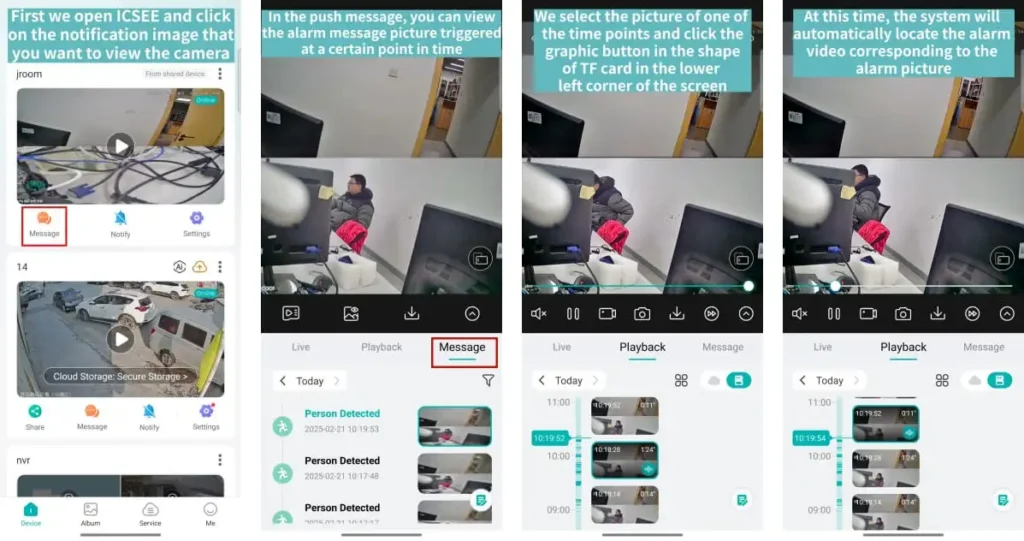
- Open iCSee and tap the notification (or the picture inside your message history) for the alarm you want to check.
- Look at the alarm snapshot that opens on screen. This is the frame captured at the moment of the trigger.
- Tap the small card-shaped icon in the lower-left corner of that snapshot screen. It looks like a tiny SD card symbol.
- The app automatically locates and opens the recorded video segment tied to that exact snapshot, jumping playback right to that point in time.
- Repeat the same steps for other alarm pictures from different time points, and each one will jump to its own matching clip.
This little icon exists specifically so you don’t have to guess the minute an alarm went off. It’s built for people who get dozens of notifications a day and just want to pull the two or three that actually matter, without dragging a timeline bar back and forth.
How to Find the SD Card Recording for a Specific iCSee Alarm?
If your camera saves to a microSD card, here’s the manual route for locating footage, which is useful when you don’t have the original notification handy.
- Open the iCSee app and tap on the camera in question.
- Tap Playback at the bottom of the live view screen.
- Select SD Card as the storage source, if the app asks you to choose.
- Tap the calendar icon and pick the day the alarm happened.
- Check the timeline bar at the bottom. Colored or highlighted blocks mark the exact minutes where motion or an alarm was recorded, so you can skip the empty stretches.
- Drag the timeline to the highlighted block that lines up with your alarm’s timestamp, then play.
One thing worth knowing: the highlighted blocks only appear if motion detection or alarm recording was actually turned on for that time period. A plain, unbroken timeline usually means the camera was recording continuously without event tagging, and you’ll need to scrub by eye instead.
How to Find the Cloud Recording for a Specific iCSee Alarm?
Cloud recordings work a bit differently, since they’re organized by event rather than by a continuous timeline. This matters if you also manage a larger system, since the process differs slightly if you connect an NVR or DVR to iCSee instead of a single standalone camera.
- Open the app and go to the main camera screen.
- Tap the Cloud icon or button, usually found at the bottom of the screen.
- Browse the event log and pick the specific alarm time or event listed there.
- Tap play on the clip tied directly to that push notification.
If nothing shows up in that event log, don’t assume the app is broken. It almost always means one of two things: the cloud subscription isn’t active on that device, or the clip hasn’t finished uploading yet. Cloud clips need a working internet connection at both the camera and the moment of upload, so a spotty connection can leave gaps even when the SD card recorded everything fine.
Why Can’t I Find the Video for an Alarm Message?
A missing video is one of the most common complaints tied to this feature, and it usually comes down to a handful of predictable causes.
| What you’re seeing | Likely cause | What to do |
|---|---|---|
| Alarm picture loads, but Playback shows nothing for that time | SD card wasn’t inserted, is corrupted, or footage already looped over | Check the card is seated properly and reformat it in-app if needed |
| Cloud tab is empty for every alarm | No active cloud subscription on this camera | Check your plan status, or rely on the SD card instead |
| Clip appears hours later, not right away | Upload delay from a weak internet connection | Wait, or check your camera going offline patterns around that time |
| Timeline shows nothing at all, even for old dates | Camera clock isn’t synced, so timestamps don’t line up with real time | Re-sync the device time in camera settings |
| You can see the notification but the app won’t open the camera | Login or binding issue on that device | Confirm you can still access the account, or reset a forgotten iCSee password |
If you’ve ruled all of these out and the app still refuses to load anything for the camera at all, not just the one alarm, the issue is broader than storage. That’s usually a sign the iCSee camera shows no video at all, and it’s worth working through that separately before assuming your specific alarm clip is simply gone for good.
How Long Does an iCSee Alarm Video Actually Stay Available Before It’s Gone?
Retention windows are shorter than most people expect, and that’s exactly why finding a clip quickly matters. On the SD card side, footage isn’t deleted on a fixed schedule. It’s overwritten once the card fills up, so the real retention time depends on card capacity, recording resolution, and whether the camera records continuously or only on motion. A 32GB card recording constant 1080p video might only hold two or three days before looping, while a 128GB card set to motion-only recording can stretch that to several weeks. If you’re shopping for a replacement card, sticking to a model that meets the SD Association’s speed class ratings for video recording helps avoid dropped frames during high-motion events.
Cloud storage works differently. Free trial periods typically run around 30 days, and paid plans define their own retention window, often somewhere between 7 and 30 days per clip depending on the tier. Once that window passes, the event clip is gone even if you never watched it. So if a specific alarm actually matters to you, whether it’s a delivery, a visitor, or something you’d want as evidence later, it’s worth downloading that clip the same day rather than assuming it’ll sit there indefinitely.
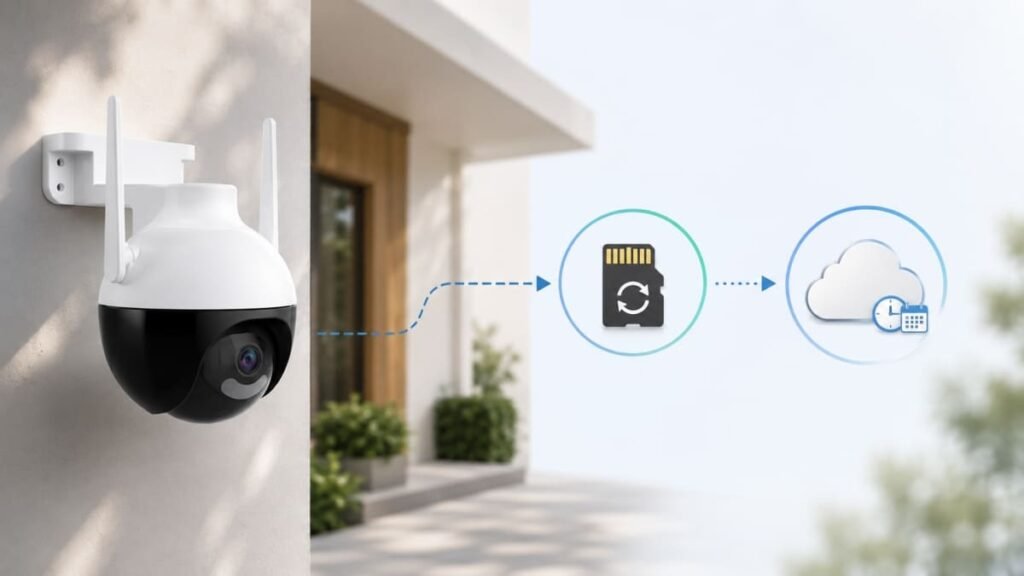
It also helps to think about the two storage types as serving different jobs rather than competing with each other. The SD card is your deep archive, good for going back and checking something from a few days ago, but only as reliable as the card inside the camera. If someone yanks the camera off the wall, that footage walks away with it. Cloud storage is the opposite: shorter memory, but it survives even if the camera itself gets damaged, unplugged, or stolen, since the clip already left the device before anything happened to it. Running both side by side, when your plan allows it, covers the gap each one leaves on its own.
If you manage more than one device on the same account, this becomes even more important. A single expired subscription can quietly wipe out cloud access across every linked camera, not just one, which is a common surprise for anyone juggling several cameras through the same login.
Frequently Asked Questions
Does iCSee record all the time, or only when there’s an alarm?
It depends on how the camera is configured. Some setups record continuously to the SD card regardless of motion, while others only save clips when an alarm or motion event triggers. Cloud storage almost always works on an event basis, saving short clips tied to alarms rather than a full continuous stream.
Can I download the alarm video to my phone?
Yes. Once you’ve located the clip in Playback, whether from the SD card or the cloud, there’s a download button on the playback screen that saves the video into your phone’s gallery or the app’s local storage, so you can keep it even after the original footage gets overwritten or expires.
What happens if I don’t have a cloud subscription?
The Cloud tab in the app will simply show no events, no matter how many alarm notifications you received. Your only source of video in that case is the SD card, assuming one is inserted and recording. This is a common surprise for people who assumed the app saved everything to the cloud by default.
Why does the alarm notification show a picture but no video attached?
Notifications are built to be lightweight, so they only carry a single snapshot rather than a full video file. The actual clip always has to be pulled separately through Playback, either by using the TF card icon shortcut on the snapshot or by navigating the timeline manually.
Can I watch alarm videos from a camera someone else shared with me?
Yes, as long as you still have active access to that shared device. Shared users typically see the same Playback options as the camera owner. If you’ve lost access, check with whoever manages the account, since sharing camera access with family members in iCSee can be revoked or need to be re-added after certain account changes.
Does iCSee delete old alarm videos automatically?
On the SD card, old footage is overwritten rather than actively deleted, once the card runs out of space. On the cloud, clips age out automatically once they pass the retention window tied to your plan. Neither side keeps footage forever, so downloading anything important sooner rather than later is the safer habit.